The braindump, a board with no date
The braindump is the one board in Bloomingo with no date. Put a thought there the moment it comes. Give it a day or a place when you’re ready, or leave it where it is.
Open the braindump
Section titled “Open the braindump”Choose Braindump in the sidebar, or press G then BG then B. The number beside it counts the thoughts on it: its notes, tasks, task lists, sticky notes, clocks, pictures, PDFs, tables and boards. Text, shapes and drawings around them aren’t counted.
Its options button (⋯, at the top right) holds Open in new tab, Open in new window, Pin to sidebar (or Unpin), Export as PNG and Export as PDF. Pinned, the braindump waits under Pinned in the sidebar.

Add a thought
Section titled “Add a thought”Double-click anywhere on the braindump. A note appears there with its title ready to type. Press ↵Enter to go on into its text, and EscEsc when you’re done.
Other ways to put a thought down:
- A sticky note. Press SS, click the board and type. While you type, ⌘↵Ctrl+Enter finishes the sticky and starts another beside it.
- A task. Choose Tasks in the toolbox, then Add a task, and click where it should go.
- Words from another app. Copy them and press ⌘VCtrl+V. They become a note in the middle of the view, with the first line as its title.
- A picture or a PDF. Drag it from your files onto the board.
While the braindump is empty, it says “Your braindump is empty” in the middle.
Give a thought a day
Section titled “Give a thought a day”When a thought is ready for a day, put it on that day. It stays on the braindump too, as the same thing, so a change in one place shows in the other.
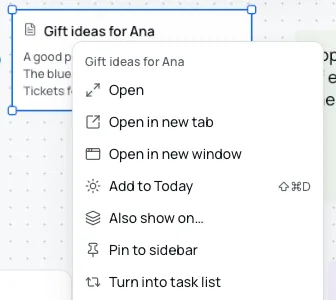
- Today. Select the thought and press ⇧⌘DCtrl+Shift+D (Add to Today). A task joins today’s My tasks. Anything else shows on today’s board.
- Another day. Right-click the thought, choose Also show on, then choose Tomorrow, or Pick a day for any date.
- A task, on any day. Right-click it and choose Put on a day, then pick the day in the month. It joins that day’s My tasks.
- A task inside a list. Right-click the task’s row. Its menu holds Add to Today and Put on a day.
A message at the bottom of the board says where it went, with Undo.
Once the thought is on its day, you can take it off the braindump. Select it there and press ⌫Backspace (Remove from this board). It stays on its day. If it’s a task you added with Add to Today or Put on a day…, its card goes to Trash, and the task stays in that day’s My tasks.
Give a thought a place
Section titled “Give a thought a place”- On a project or another board. Choose Also show on and pick the board, or type a few letters of its name to find it. See One thing, many places.
- With others like it. Select a few thoughts and press ⌥⌘GCtrl+Alt+G to wrap them in a section, then type its name. A section that grows can become a board of its own with Turn into a board. See Sections.
How it stays light
Section titled “How it stays light”- Thoughts from elsewhere line up. Anything sent here from another board lands in a loose grid, four to a row, to the right of the last one.
- Old thoughts fade. A thought you haven’t opened or changed for four weeks fades a little, with a line such as “Last opened 6 weeks ago”. Open it, change it or tick one of its tasks, and it comes back.
- Nothing is deleted for you. Bloomingo never removes a thought on its own. Only you can.
- Tidy when you like. Select a few thoughts and choose Tidy on the bar above them to line them up.
- Nothing asks to be sorted. The count is a plain number, never a warning. A thought can stay here as long as you like.
Yesterday’s unfinished tasks can come here too. Braindump is one of the choices in their tray, and tasks you haven’t decided on by the end of the day come back here. To send them onto the next day instead, change Leftovers you haven’t decided in Settings. See Yesterday’s unfinished tasks.
There’s more on the braindump feature page.