My tasks on each day
Every day opens with one task list near its top left: My tasks. It holds the tasks you have put on that day, wherever they came from.
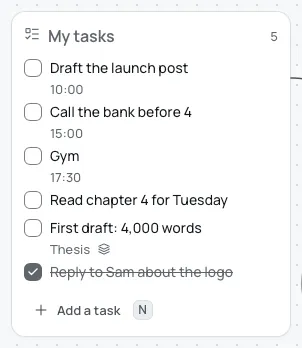
What My tasks shows
Section titled “What My tasks shows”- Its name, and beside it the number of its tasks still open.
- All of its tasks, however many there are, unless you make the card shorter by hand.
- The repeating tasks due that day, at its end, after its own tasks. See Repeating tasks.
- Add a task, with its key, NN.
It works as any task list does: you type, tick, drag and open its tasks the same way. See Tasks and task lists. You can move it, resize it or give it a colour, but its name stays My tasks.
A day can hold other task lists and task cards as well. Their tasks belong to the day too. The sidebar’s day item counts the tasks still open on the day you have open, across all of its lists.
Add a task to today
Section titled “Add a task to today”On today’s board:
- Choose Add a task at the foot of My tasks, type, and press ↵Enter for the next one.
- Press NN with no task list selected, while My tasks is in view.
- Drag a task from another list on the board into My tasks.
When today is still empty, a card in the middle of the board asks “What’s on your mind today?”. Type a task and press ↵Enter. Each one joins the end of My tasks, and the card stays for the next. EscEsc, a click on the board or choosing a tool puts the card away for the day.
How tasks reach a day from elsewhere
Section titled “How tasks reach a day from elsewhere”Each of these puts the task at the end of that day’s My tasks:
- Add to Today, or ⇧⌘DCtrl+Shift+D, from a task’s options, its side panel, or while you type it.
- Put on a day, or choosing a day in the task’s Day field.
- Giving a time to a task that is on no day. It goes onto today.
- Drawing a task on the day’s timeline. My tasks is the list chosen first.
- Choosing Today, Keep all for today or Pick a day for yesterday’s unfinished tasks, or the setting that puts them onto the next day.
- Bring back to today, on a task you let go.
The first two keep the task where it was as well. It is still one task: tick it in either place and it is done in both. Putting a task on a day explains each one, and Yesterday’s unfinished tasks explains the tray.
Repeating tasks don’t move. They show at the end of My tasks on each of their days by themselves.
Past days
Section titled “Past days”A past day you never used shows “Nothing was planned for this day” in place of My tasks. You can still add to it, and look back at any day you did use. See Day boards.