Zoom in, move around and tidy up
A board is as large as you need. Scroll or drag to move around it, pinch or use the keys to zoom, and use Tidy to line up a few things at once.
Move around a board
Section titled “Move around a board”Moving the board is also called panning. Any of these works, whatever tool is on:
- A trackpad: slide two fingers.
- A mouse wheel: turn it to move up and down. Hold ⇧Shift as you turn it to move sideways.
- Space: hold SpaceSpace and drag. Let go of SpaceSpace to stop.
- The middle mouse button: press it and drag.
Or choose the Hand in the toolbox, or press HH. With the Hand on, dragging anywhere moves the board, and clicks select and open nothing. Press EscEsc to go back to Select.
With Select on, dragging across an empty part of the board draws a selection box instead. See Selecting and moving.
Zoom in and out
Section titled “Zoom in and out”- A trackpad: pinch.
- A mouse wheel: hold ⌘Ctrl and turn the wheel. The board zooms around the pointer.
- The keys: ⌘+Ctrl++ zooms in, ⌘−Ctrl+− zooms out, and ⌘0Ctrl+0 goes back to 100%.
- The zoom bar in the bottom-right corner.
- The command menu (⌘KCtrl+K): Zoom in, Zoom out, Zoom to 100% and Fit to content. On a Mac, the View menu has Zoom In, Zoom Out, Actual Size and Fit to Content.
A board zooms from 10% to 400%. The keys and buttons step through 10%, 25%, 50%, 75%, 100%, 125%, 150%, 200%, 300% and 400%.
The zoom bar
Section titled “The zoom bar”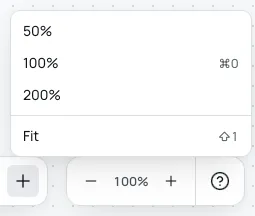
The zoom bar holds four controls, left to right:
- Zoom out, the minus.
- The level, such as 100%. Click it for a menu of 50%, 100%, 200% and Fit.
- Zoom in, the plus.
- Help, the question mark, which opens the keyboard shortcuts. ?? opens them too.
There is no mini-map. The zoom bar is all there is in that corner.
Fit everything in view
Section titled “Fit everything in view”Press ⇧1Shift+1, or choose Fit in the zoom bar’s menu. The board zooms and moves so everything on it shows, with a margin around it. Fit never zooms in past 100%, so a board with a few things shows them at their own size, in the middle.
What you see when zoomed out
Section titled “What you see when zoomed out”Things keep their size on the board at every zoom. Only how much of them shows changes:
- Below 75%, cards lose their shadow.
- Below 40%, notes, lists and other cards show only their header.
- Below 25%, the dot grid hides.
- Below 20%, cards show as blocks in their colour, and text as grey blocks. Shapes keep their outline but not their words.
Drawings and links show at every zoom. When you stop zooming, the nearest things to the middle of the view change first.
Each board remembers its view
Section titled “Each board remembers its view”Leave a board and come back, and it shows the same place at the same zoom. Each board remembers its view until you quit Bloomingo.
Line things up with Tidy
Section titled “Line things up with Tidy”Select two or more things: hold ⇧Shift as you click, or drag a box around them. Then click Tidy in the actions bar above them. Its icon is a small brush.

Tidy sorts what you selected into rows, by where each thing sits from top to bottom. Things that overlap in height share a row. Each row then lines up left to right with its tops level, 24 pixels apart. The rows sit 24 pixels apart too, starting from the selection’s top-left corner.
- Links follow the things they join.
- A selected section moves as one, with everything in it.
- The whole tidy is one change, so ⌘ZCtrl+Z puts everything back.