Projects and the Projects page
A project is a board you keep on the Projects page, for something that takes more than a day. It works like any other board: it can hold tasks, notes, pictures and boards inside it. More on that on the boards feature page.
What a project is
Section titled “What a project is”Any board can be a project. Keeping a board in Projects only lists it on the Projects page. It doesn’t move it.
- A board you made on a day, in the braindump or inside another board stays there, and also shows in Projects.
- A project made on the Projects page lives on no board. It has no trail of boards above its name until you put it on a day.
An open project shows a “Project” chip beside its name.
Open the Projects page
Section titled “Open the Projects page”Choose Projects in the sidebar. You can also press ⌘KCtrl+K and choose Go to Projects, or, on a Mac, choose Go › Projects in the menu bar.

Each project shows as a small picture of its board, with its name under it. Under the name, a line such as “4 boards inside · Edited 2 hours ago” says how many boards it holds and when it last changed. An empty board shows a blank space where its picture would be.
The projects you worked on last come first. Writing in a project’s notes counts, and so does anything changed on the boards inside it, however deep. A clock that ends by itself doesn’t.
A project shows no progress: no count of tasks done, and no bar.
Click a project to open it. ⌘ClickCtrl+Click opens it in a new tab; from a window other than the first, in a window of its own.
Make a new project
Section titled “Make a new project”Choose New project at the top right of the Projects page. A new board opens with its name ready to type. Type it and press ↵Enter.
These do the same:
- the New project tile after the last project;
- New project in the command menu (⌘KCtrl+K);
- on a Mac, File › New Project in the menu bar.
With no projects yet, the page says “No projects yet. A project is a board you keep here. Make one, or choose Move to Projects on any board.”
Move a board into Projects
Section titled “Move a board into Projects”- Open the board.
- Choose Board options, the ⋯ button at the top right of the board.
- Choose Move to Projects.
Bloomingo says “Added to Projects.”, with Undo. Days and the braindump can’t be projects.
Bloomingo also offers to keep a board in Projects when you remove or delete the last board node that leads to it. The question has Keep in Projects, so the board can still be found. See Boards inside boards.
A project’s options
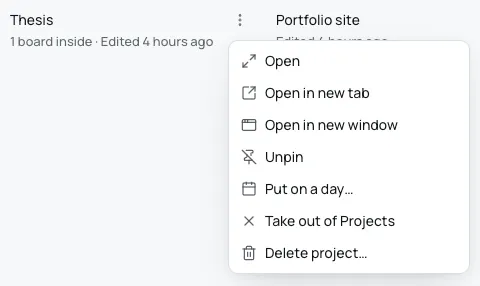
Section titled “A project’s options”Choose the ⋮ button beside a project’s name, or right-click the project. Its menu, “Project options”, holds:
- Open opens the project.
- Open in new tab opens it in a tab of its own in the first window.
- Open in new window opens it in a window of its own.
- Pin to sidebar puts it in the sidebar’s Pinned section. For a pinned project this reads Unpin.
- Put on a day opens the month. Choose a day, and the project’s board goes on that day as a board node: “Put on Friday, 9 October.”, with Undo.
- Take out of Projects takes it off the Projects page. See below.
- Delete project sends the project to Trash. See below.
Take a board out of Projects
Section titled “Take a board out of Projects”Choose Take out of Projects in the project’s options, or in Board options on the open board. The board stays where it lives. Bloomingo says “Taken out of Projects.”, with Undo.
A project that lives on no board needs a place to go, or nothing would lead to it. So Bloomingo asks first: “Take “Trip ideas” out of Projects? It lives on no board, so it needs a place to stay: today, or the braindump.”
- Put on Today puts it on today’s board.
- Put in Braindump puts it in the braindump.
- Cancel keeps it in Projects.
The toast says where it went, such as “Taken out of Projects and put on Today.”, with Undo.
Delete a project
Section titled “Delete a project”Choose Delete project. Bloomingo asks first, such as “Delete “Trip ideas”? It holds 8 items, which go to Trash with it. You can restore it for 30 days.”
Choose Delete project, or Cancel to keep it. The project and everything on it go to Trash, with Undo. A project inside it stays on the Projects page.
Restored from Trash, a project that lived on no board comes back to Projects. See The Trash.