The Notes page
The Notes page shows every note you’ve written, wherever it lives, as cards. Search them, sort them, and open one in the side panel without leaving the page.
Open the Notes page
Section titled “Open the Notes page”Choose Notes in the sidebar. You can also press ⌘KCtrl+K and choose Go to Notes, or, on a Mac, choose Go › Notes in the menu bar.
Under the title, a line says what the page holds: “Every note, wherever it lives.”

Find a note
Section titled “Find a note”Type in Search notes above the cards. The page keeps the notes whose title or text has a word starting with each word you type. “pri pla” finds a note called “Pricing plan”, for example.
When nothing matches, the page says so, such as “No matches for “pricing”. Try fewer words, or check the spelling.” Clear the field to see every note again.
Sort the notes
Section titled “Sort the notes”The switch beside the search field sorts the cards:
- Recent puts the note you last edited first. Typing in a note’s title or text counts as an edit; opening or moving it does not.
- A to Z sorts by title. A note with no title sorts as “Untitled note”. Notes with the same title show the last edited first.
The page remembers your choice on this device.
Read a card
Section titled “Read a card”Each card shows a note’s title, its first three lines, and a line at its foot such as “On Launch · Edited Tuesday”.
- “On Launch” is where the note lives: the board it was first put on, of the boards it is still on. A day shows as its date, and the braindump as “Braindump”.
- A note on several boards says how many instead, such as “On 3 boards”.
- A note on no board, such as one you imported, shows only when it was edited.
A note whose boards are all in Trash isn’t listed. It comes back when they do.
Open a note
Section titled “Open a note”Click a card to open its note in the side panel, beside the cards. You can read and write there as on a board. See Writing in a note.
The panel stays open while the Notes page shows. To see the note on its board, choose Open where it lives at the top of the panel. The board opens, moves to the note and keeps the panel open.
Close the panel with Close or EscEsc. The card you opened it from has the focus again.
⌘ClickCtrl+Click on a card opens the note in a new tab instead. From a window other than the first, it opens in a window of its own.
A note’s options
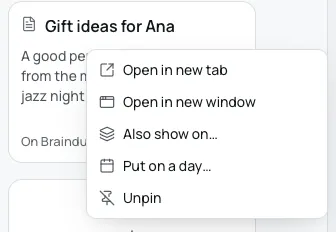
Section titled “A note’s options”Right-click a card to open its menu, “Note options”:
- Open in new tab opens the note in a tab of its own in the first window.
- Open in new window opens the note in a window of its own.
- Also show on puts the note on another board as well. Choose the board in the picker. Bloomingo says “Also on Launch.”, with Undo. See One thing, many places.
- Put on a day opens the month. Choose a day, and the note goes on that day’s board: “Put on Friday, 9 October.”, with Undo.
- Pin to sidebar puts the note in the sidebar’s Pinned section. For a pinned note this reads Unpin.
- Delete shows only for a note on no board. It asks first: “Delete “Launch plan”? You can restore it from Trash for 30 days.” Choose Delete, or Cancel to keep it. The note goes to Trash, with Undo.
If the note is already on the board you chose, Bloomingo says so, such as “Already on Launch.”
A note on a board is deleted from the board itself: see Notes and the side panel.
Write a new note
Section titled “Write a new note”After the last card, the New note card makes a new note. Today’s board opens with the note in its middle, its title ready to type. The New note card shows while no search is typed.
With no notes yet, the page says “No notes yet. Notes you write on any board show up here.”