Adding things to a board
Everything you can put on a board starts in the toolbox at the bottom of the board. You can also double-click the board, drag files in from your computer, or paste.
The toolbox
Section titled “The toolbox”
From left to right, it holds the tools, then drawing and sticky notes, then things to add. Hover over a button to see its name and key.
| Button | Key | What it does |
|---|---|---|
| Select | VV | Selects and moves things. See Selecting and moving. |
| Hand | HH | Moves the board. See Zoom, pan and Tidy. |
| Text | TT | Puts words straight on the board. See Shapes, text and links. |
| Shapes and connectors | Brings up the shapes bar, for shapes, arrows and lines. | |
| The drawing tool | PP | The Pen at first, or the Highlighter or Eraser if you chose one last. See Drawing. |
| Sticky note | SS | Turns on the Sticky tool. See Sticky notes. |
| Tasks | Brings up a small bar with Add a task and Add a task list. | |
| Add a note | Adds a note. | |
| Add a clock | Adds a clock: a timer, a stopwatch or Pomodoro. | |
| Add a board | Adds a board inside this one. | |
| Add more | Opens the add panel with everything else. |
Put something where you want it
Section titled “Put something where you want it”- Click Add a note, Add a clock or Add a board. The button stays pressed.
- Move the pointer over the board. A faint copy of the new thing follows it, at the size it will be.
- Click where it should go.
A new note is ready for you to type its title. To change your mind before you click, press EscEsc, choose another tool, or click outside the board.
There are two other ways:
- Drag the button onto the board. The new thing lands where you let go.
- Use the keys. Move to the button with TabTab and press ↵Enter or SpaceSpace. It lands in the middle of what you can see.
Add a task or a task list
Section titled “Add a task or a task list”Click Tasks in the toolbox. A small bar rises above it with Add a task and Add a task list. Choose one, then click the board. You can also drag either one out, or press ↵Enter on it to place it in the middle.
A new task is ready for its words, and a new task list for its title. Click Tasks again, or press EscEsc, to put the bar away.
The add panel
Section titled “The add panel”Click Add more, the plus at the end of the toolbox. The panel “Add to the board” opens above it.
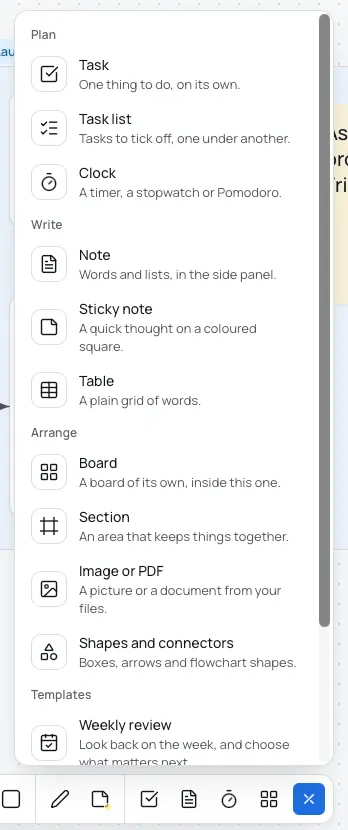
| Section | Row | What it adds |
|---|---|---|
| Plan | Task | One thing to do, on its own. |
| Plan | Task list | Tasks to tick off, one under another. |
| Plan | Clock | A timer, a stopwatch or Pomodoro. See Timers and clocks. |
| Write | Note | Words and lists, in the side panel. See Notes. |
| Write | Sticky note | A quick thought on a coloured square. |
| Write | Table | A plain grid of words. See Tables. |
| Arrange | Board | A board of its own, inside this one. See Boards inside boards. |
| Arrange | Section | An area that keeps things together. See Sections. |
| Arrange | Image or PDF | A picture or a document from your files. See Pictures and PDFs. |
| Arrange | Shapes and connectors | Boxes, arrows and flowchart shapes. |
| Templates | Weekly review | Look back on the week, and choose what matters next. |
| Templates | Project plan | What done looks like, the next steps and notes. |
| Templates | Study session | What to learn, what to cover, a clock and notes. |
Most rows work like the toolbox’s buttons: click the row, then click the board. A few do something else:
- Sticky note turns on the Sticky tool.
- Image or PDF opens your computer’s file picker.
- Shapes and connectors brings up the shapes bar.
- Section puts down a section where you click, or draws one as large as you drag.
You can drag any row onto the board, except Image or PDF and Shapes and connectors.
With the keys, the first row has focus as the panel opens. Use ↑↑ and ↓↓ to move, and ↵Enter or SpaceSpace to choose. A row chosen with the keys lands in the middle of the view.
The panel closes when you choose a row, click Add more again, press EscEsc, click anywhere else, or pick a tool.
Start from a template
Section titled “Start from a template”A template adds a board, named after the template, with a few plain things on it to start from. Choose it in the add panel as you would any row, then click the board. Open the new board to begin.
- Weekly review: sticky notes “What went well?”, “What got in the way?” and “What matters next week?”, and a task list “Next week”.
- Project plan: a sticky note “What does done look like?”, task lists “Next steps” and “Waiting on”, and a note “Notes”.
- Study session: a sticky note “What do I want to learn?”, a task list “To cover”, a clock, and a note “Notes”.
The sticky notes are yellow, the lists and the note are empty, and the clock starts in the mode you used last. Change or delete anything on it. One undo takes the whole template away.
Double-click the board
Section titled “Double-click the board”Double-click an empty part of a board to add a note there. To add something else, open Settings and find Double-click on a board adds under Boards. Its choices are A note, A task, A sticky note and Text.
A double-click on something already on the board opens it instead. With the Pen, the Highlighter, the Eraser or the Hand on, a double-click adds nothing.
Drag things in from your computer
Section titled “Drag things in from your computer”- Pictures and PDFs land where you let go. Other kinds of file stay out, and a message names them: “Only images and PDFs can go on a board: notes.txt, plan.docx.”
- Words dragged from another app become a note. The first line is its title and the rest is its text.
- Words let go over a task list become tasks, one for each line. A line shows where they will go.
- A web address on its own becomes a web link card.
Press ⌘VCtrl+V while the board is in front and you aren’t typing:
- A picture or a PDF lands in the middle of what you can see.
- A web address on its own becomes a web link card.
- Other words become a note in the middle of the view. With one task list selected, each line becomes a task at its end instead.
- Things you copied in Bloomingo come back as copies. See Selecting and moving.
From the command menu
Section titled “From the command menu”Press ⌘KCtrl+K and type “new” for New task, New note, New task list, New timer (a clock), New board, New text and New shape, each named for its board: “New note in Launch”. “Add an image or PDF” opens the file picker. On a Mac, the File menu has New Note, New Task List and New Board. See Search and commands.