Go to any day with the calendar
The month at the bottom of the sidebar opens any day’s board. Click a date, and that day opens in the work area.
Read the month
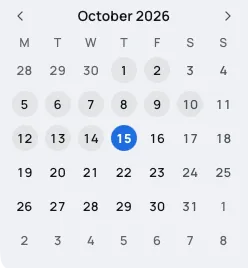
Section titled “Read the month”The calendar always shows the month of the day that is open. When you open a day in another month, it follows.
- The open day sits in a filled blue circle.
- Today’s number is blue and bold.
- A day with something on it has a faint grey circle. A day with only an empty My tasks list has none.
- Weekends are a lighter grey, and the days of the months either side are lighter still.
The first column is the first day of your week. Choose it in Settings > Days > Week starts on, Monday at first. See Settings.
Open a day
Section titled “Open a day”Click any date to open its board. The days at the edges, from the months before and after, open too.
Previous month and Next month, the arrows either side of the month’s name, change the month shown. They open no day, so you can look ahead without leaving the day you are on.
Jump to another month or year
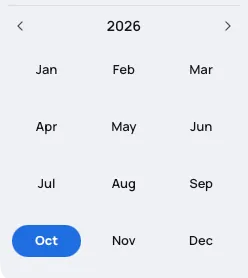
Section titled “Jump to another month or year”- Click the month’s name at the top of the calendar, such as October 2026. The twelve months of that year show, three to a row.
- To change the year, use Previous year and Next year. Or click the year to see twelve years at once, such as 2022 – 2033, with Earlier years and Later years to move twelve at a time.
- Choose a year to see its months, then a month to see its days.
- Click a day to open it.
The months and years are marked as the days are: this month and this year in blue and bold, and the open day’s month and year in a filled blue shape. The calendar keeps its size the whole time. Press EscEsc to go back a step: from the years to the months, and from the months to the days.
Use the calendar from the keyboard
Section titled “Use the calendar from the keyboard”The calendar is one stop when you press TabTab. Then:
- ←← and →→ move a day, and ↑↑ and ↓↓ move a week.
- Page UpPage Up and Page DownPage Down move a month.
- ↵Enter or SpaceSpace opens the day you are on.
On the month’s name, ↵Enter shows the months. Among the months or the years, the arrow keys move, up and down by a row of three, ↵Enter chooses, and EscEsc goes back a step.
When the sidebar is collapsed or the window is short
Section titled “When the sidebar is collapsed or the window is short”With the sidebar collapsed to its rail of icons, the date tile at the bottom shows today’s date on a small page. Rest the pointer on it, or click it, and the month opens beside it.
- Opened by resting the pointer, it closes a moment after you move away.
- Opened with a click, ↵Enter or SpaceSpace, it stays until you choose a day, press EscEsc or click somewhere else. Opened from the keyboard, it puts the focus on the open day.
In a window less than 720 pixels tall, the month folds into a Calendar row with the date tile, which opens the month beside it in the same way. The sidebar explains collapsing it.
Go to the day before or after
Section titled “Go to the day before or after”| Where | The day before | The day after |
|---|---|---|
| The day’s header | Previous day | Next day |
| The keyboard | [[ | ]] |
| The command menu | Go to the previous day | Go to the next day |
| The Mac’s menu bar | Go > Previous Day | Go > Next Day |
[[ and ]] work wherever you aren’t typing, and on keyboards that type them with an extra key, as German and French ones do.
Moving day by day like this counts as one step. Back then returns to the day you started from, however many days you moved. See tabs and windows.
Go to today, or to a day by name
Section titled “Go to today, or to a day by name”- Press G then TG then T, or choose Today in the header of any other day.
- In the command menu, choose Go to Today. On a Mac, choose Go > Today.