Every setting in Bloomingo
Settings holds a few choices about how Bloomingo looks and how your days work. A change applies at once, in every window, and there is no Save button.
Open Settings
Section titled “Open Settings”- Click Settings at the bottom of the sidebar.
- Press ⌘,Ctrl+,, even while you type.
- Choose Go to Settings in the command menu.
- On a Mac, choose Bloomingo › Settings in the menu bar.

Appearance
Section titled “Appearance”- Light: light backgrounds and dark text.
- Dark: dark backgrounds and light text.
- System: follows your computer’s light or dark appearance, and changes when it does. This is the choice Bloomingo starts with.
You can also change the theme from the command menu (Use the light theme, Use the dark theme, Use the system theme), or on a Mac from View › Theme.
Interface size
Section titled “Interface size”Makes everything in Bloomingo’s windows smaller or larger: the text, the buttons, the sidebar and the boards.
- Small: 90% of the usual size.
- Default: the usual size. This is the choice Bloomingo starts with.
- Large: 112.5%.
- Larger: 125%.
Zooming a board is separate: it changes only that board’s view. See Zoom, pan and Tidy.
Your day ends at
Section titled “Your day ends at”When Bloomingo moves on to the next day. The choices are Midnight, which Bloomingo starts with, then each hour from 1:00 AM to 6:00 AM.
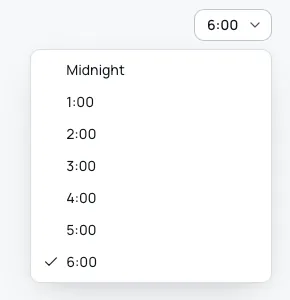
Until that time, Bloomingo still counts it as the day before. With 2:00 AM chosen, at 1:30 AM on Wednesday, Today is still Tuesday, and your Tuesday board stays in front. This also sets when yesterday’s unfinished tasks are offered, the hours the timeline shows, and what “yesterday” means in words like “Edited yesterday”. If you often work past midnight, a later time keeps the night with the day it belongs to.
Week starts on
Section titled “Week starts on”The first day of your week. The choices are the seven days in order: Monday, Tuesday, Wednesday, Thursday, Friday, Saturday and Sunday. Bloomingo starts with Monday.
It sets the first column of the calendar in the sidebar and of every date picker, and the order of the weekdays in a task’s Repeat. A task that repeats every 2 weeks or more counts its weeks from the week start it was made with, and keeps it if you change this later. See Repeating tasks.
Leftovers you haven’t decided
Section titled “Leftovers you haven’t decided”Each new day, Bloomingo offers the tasks left unfinished on the days before, and you choose what each one does. This setting says where the ones you didn’t decide on go once that day ends:
- Back to the braindump: each goes to the braindump as a task of its own, to wait until you give it a day. This is the choice Bloomingo starts with.
- Onto the next day: each goes into My tasks on the new day.
It happens by itself the next time you open Bloomingo, as one step you can undo. A day of a repeating task is never moved this way. Yesterday’s unfinished tasks explains the rest.
Boards
Section titled “Boards”Double-click on a board adds
Section titled “Double-click on a board adds”What a double-click on an empty part of any board puts there:
- A note: a note, with its title ready to type. This is the choice Bloomingo starts with.
- A task: a task on its own, ready to type.
- A sticky note: a sticky note in the last colour you chose, ready to type.
- Text: text, ready to type.
A double-click on something already on the board opens it, or types in it, instead. Adding things has the other ways to add.
Storage and plan
Section titled “Storage and plan”A line and a bar show how much space your pictures and PDFs take. Files waiting in the Trash count until they are deleted for good. The Files page shows the same line. See The Files page.
Import and export
Section titled “Import and export”Two buttons, Import and Export everything, with a line under them on what each does. Import brings back a Bloomingo export, or the Markdown notes, pictures and PDFs in any folder, and replaces nothing. Export writes notes as Markdown, files as they are and boards as JSON, in a new folder where you choose.
While an import or an export runs, both buttons are dimmed. Export and import explains both.
- Bloomingo 0.1.0: the version you have.
- Copy diagnostic info: copies Bloomingo’s version, your system’s, and the errors Bloomingo noted lately. Nothing you wrote is in it, and nothing leaves your computer unless you send it. The toast says “Copied diagnostic info.”, or “Not copied. Try again.” if it didn’t work. When something goes wrong says when to use it.
Where your settings are kept
Section titled “Where your settings are kept”Your settings are kept in your library, with your boards. Your computer also remembers the theme, the interface size and the day’s settings, so a new window opens in them straight away.
A tablet’s Settings has one more section, Pencil and touch. Tablets explains it.