Putting a task on a day
A task can go on any day, have a time on that day, and remind you at that time. A deadline is separate: it says when something is due, not when you plan to do it.
Add a task to Today
Section titled “Add a task to Today”Press ⇧⌘DCtrl+Shift+D, or choose Add to Today in the task’s options. That works on a task in a list (right-click it), on a task card’s menu, in the task’s side panel, and while you type the task.
The task joins the end of today’s My tasks and stays where it was as well. It is one task in two places: tick it in either and it is done in both. You’ll see “Added to Today.” with Undo, or “Already on Today.” when today holds it. On today’s board the option isn’t offered.
Put a task on another day
Section titled “Put a task on another day”- Right-click the task, or open its options.
- Choose Put on a day. The month opens under it.
- Choose the day.
The task joins the end of that day’s My tasks and stays where it was too. You’ll see “Put on Friday, 9 October.” with Undo. To reach another month or year, use the month’s arrows or its title. See The calendar.
A task planned for a later day isn’t offered as unfinished when an earlier day holding it ends.
The Day field
Section titled “The Day field”In the task’s side panel, Day shows “Today”, “Tomorrow”, the date, or “Not on a day”. Choosing it opens the month, and choosing a day there puts the task on that day, as Put on a day does.
A task on several days shows the latest one: the day it is planned for.
Give a task a time
Section titled “Give a task a time”- Open the task in the side panel.
- Choose Add a time in its Time field. A list of times opens.
- Choose a time.
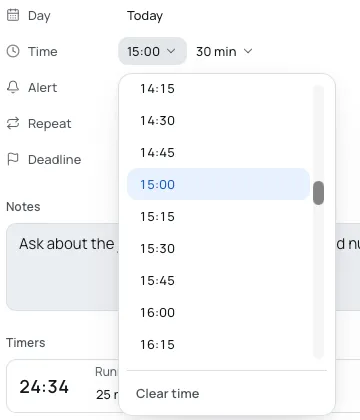
The list has every quarter hour of your day. It opens at the task’s time, or else at the next quarter hour on today, or else at 9:00 AM. You can also use ↑↑ and ↓↓, Page UpPage Up and Page DownPage Down for an hour at a time, HomeHome and EndEnd, then ↵Enter. EscEsc or a click outside closes it.
Once the task has a time, Clear time at the foot of the list takes away the time, its length and its alert.
A task with a time shows on its day’s timeline. Giving a time to a task that is on no day puts it on today as well. You can also give a time on the timeline itself: see The day’s timeline.
Choose a length
Section titled “Choose a length”Once there is a time, a length follows it: No length, 15 min, 30 min, 45 min, 1 hour, 1½ hours, 2 hours or 3 hours. A length made on the timeline shows as it is, such as “1 hour 15 min”. A task with no length shows as 30 minutes on the timeline.
Ask for an alert
Section titled “Ask for an alert”Once there is a time, the Alert field offers:
- No alert
- At the time
- 5 minutes before
- 10 minutes before
- 30 minutes before
- 1 hour before
Nothing alerts unless you choose it. The one exception is a task drawn on the timeline, which starts at At the time.
At the alert, your computer shows a notification named for the task, saying “At 3:00 PM” or “In 10 minutes, at 3:00 PM”, with a chime. Click it and Bloomingo comes forward, with the timeline showing that task ringed. When Bloomingo is already in front, the chime plays and the timeline stays where it is.
- Alerts come while Bloomingo is running, even when its window is hidden or covered by other windows.
- One due while your computer slept comes when it wakes, saying only “At 3:00 PM”.
- One due while Bloomingo was closed doesn’t come later.
- A task you have ticked done doesn’t alert.
- A repeating task alerts on each of its days that is still open.
If no notification appears, check that your system allows notifications from Bloomingo.
Set a deadline
Section titled “Set a deadline”Choose Add a deadline in the side panel and pick the date. To take it away, choose the clear button beside it, Clear the deadline.
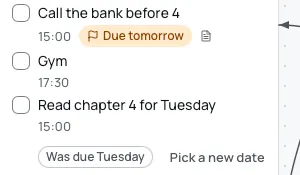
On the task’s row, the deadline shows as:
- the date, such as “Due 12 October”, from two days away, with the year when it is in another year;
- a chip with a flag, “Due tomorrow” or “Due today”;
- once it has passed, “Was due Tuesday” for a day in the last week, or “Was due 12 September” before that, with Pick a new date, which opens the month.
A done task shows no deadline. A deadline never moves a task to another day.