Tabs, Back and Forward, and windows
On a Mac or a Windows PC, Bloomingo’s first window holds tabs, as a browser does. Each tab shows one place and keeps its own way back. To see two things side by side, open one in a window of its own.

Open a new tab
Section titled “Open a new tab”Press ⌘TCtrl+T, or click New tab (+) after the last tab. On a Mac, File > New Tab does the same.
The command menu opens, saying “Search to open in a new tab”. Choose a day, the braindump, a board, a page or a note, and it opens in a new tab at the end of the row. A thing found on a board opens its board in the new tab, moved into view. An action runs where you are. Press EscEsc to close the menu without opening a tab.
To open something you can see in a new tab, hold ⌘Ctrl as you click it, or choose Open in new tab from its menu. The tab opens right after the one in front. Open in new tab is in:
- Board options (⋯) on a day, the braindump or a board;
- the right-click menu of a pin or a Recent row;
- the node menu of a board or a note;
- a project’s options on the Projects page, and a note card’s menu on the Notes page;
- the side panel’s header, for a note or a board.
Holding ⌘Ctrl as you click also works on the sidebar’s rows, a board’s Open button, results in the command menu and links in a note. In the command menu, ⇧↵Shift+Enter does the same. A note in a tab shows on a page of its own, with Open where it lives at the top right.
Move between tabs
Section titled “Move between tabs”Click a tab to bring it forward, or use the keys:
| What it does | Keys |
|---|---|
| The first to the eighth tab | ⌘1Ctrl+1 to ⌘8Ctrl+8 |
| The last tab | ⌘9Ctrl+9 |
| The next tab, round the row | ⌃TabCtrl+Tab |
| The tab before, round the row | ⌃⇧TabCtrl+Shift+Tab |
In the row itself, ←← and →→ move between tabs, HomeHome and EndEnd go to the ends, and ↵Enter or SpaceSpace brings one forward.
A tab is named for its place: “Today”, another day such as “Fri 2 Oct”, “Braindump”, a board’s name, a page’s name, or a note’s title. A name cut short shows whole in a tooltip. Tabs narrow as you add them, then the row scrolls sideways.
Each tab keeps its place, its Back and Forward, and what its side panel shows. A board’s zoom and position belong to the board, so they are the same in every tab. Two tabs can show the same place.
Close a tab
Section titled “Close a tab”- Click Close tab (×) on the tab in front, or on a tab under the pointer.
- Press ⌘WCtrl+W, or on a Mac choose File > Close Tab, to close the tab in front.
- Click a tab with a mouse’s middle button.
- Right-click a tab and choose Close tab, or Close other tabs to keep only that one.
The tab to the right comes forward, or else the one to the left. Closing the last tab closes the window.
Reopen a closed tab
Section titled “Reopen a closed tab”Press ⇧⌘TCtrl+Shift+T, or on a Mac choose File > Reopen Closed Tab. The tab comes back where it stood, with its Back and Forward. Press again for the one before, up to ten while Bloomingo runs.
Go back and forward
Section titled “Go back and forward”Back and Forward are the two arrows at the left of the tabs. They dim while there is nowhere to go. These do the same:
- ⌘[Ctrl+[ and ⌘]Ctrl+], and on Windows ⌥←Alt+← and ⌥→Alt+→ too;
- a mouse’s back and forward buttons;
- Go back and Go forward in the command menu;
- Go > Back and Go > Forward in a Mac’s menu bar.
Opening a day, the braindump, a board, a page or a note in a tab adds a step. Moving day by day with the arrows, [[ or ]] is one step, so Back returns to the day you started from. The side panel and other windows add no steps. Each tab keeps up to 50 places each way while Bloomingo runs.
Your tabs when you come back
Section titled “Your tabs when you come back”The tabs, and the one in front, open again as you left them on this device. A tab that showed today shows the new today. A tab whose board or note went to Trash is left out. A new library starts with one tab, on today.
Open a window of its own
Section titled “Open a window of its own”A day other than today, the braindump, a board, a project, a note, a picture or a PDF can open in a window of its own. You never need one: everything works in the first window.
Choose Open in new window from the menus that offer Open in new tab, or from the side panel’s header for a picture or a PDF. Hold ⌘Ctrl as you click a file on the Files page to open it in its own window.
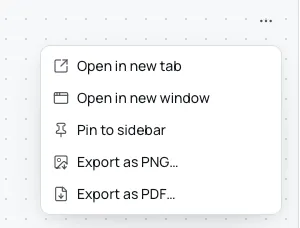
- A day, the braindump or a board gets a full window, with its own sidebar, side panel, undo, and Back and Forward, but no tabs. It starts quiet: its sidebar collapsed and, on a day, the timeline hidden. Holding ⌘Ctrl as you click there opens another window.
- A note gets only the note, with Open where it lives, which shows it on its board in the first window.
- A picture or a PDF gets only the file, with Download to save a copy. ←← and →→ turn a PDF’s pages.
Each window is named for what it shows, so the system’s window switcher and a Mac’s Window menu list it. That menu also has Minimize, Zoom and Bring All to Front.
One window for each thing
Section titled “One window for each thing”- Asking for something already open in a window of its own brings that window forward.
- Opening what the first window shows in a window of its own moves the first window to today.
- Today belongs to the first window. Asking for today in another window, with G then TG then T, Today or the day’s arrows, brings the first window forward. A day’s window closes when its day becomes today.
- Every window shows the same library, and a change in one shows in the others at once.
Close a window
Section titled “Close a window”- Press ⇧⌘WCtrl+Shift+W to close a window with all its tabs, or on a Mac choose File > Close Window.
- In a window of its own, ⌘WCtrl+W closes it. A closed window is forgotten.
- Closing the first window while others are open hides it on a Mac. It comes back when you open Bloomingo from the Dock, or ask for today. On Windows, it quits Bloomingo and keeps the other windows for next time.
- Closing the last window quits Bloomingo. Windows still open when Bloomingo quits come back where they were the next time you open it.