Export and import your library
Export everything at any time: notes as Markdown, files as they are, boards as JSON. Import brings an export back, or the Markdown notes, pictures and PDFs in any folder, and never replaces anything you have.
Export everything
Section titled “Export everything”- Open Settings and find Import and export.
- Choose Export everything. You can also choose it in the command menu, or on a Mac from File › Export Everything.
- In the window that says “Choose where to export”, choose a folder and confirm.
Bloomingo saves what you are typing, then writes a new folder there, named for today: “Bloomingo export 2026-10-03”. If that name is taken, the new one ends in “ 2”, “ 3” and so on.
While it works, a toast shows how far it has come, such as “Exporting… 40%”, with Cancel. Cancel stops it, removes what it wrote and says “Export cancelled.” When it is done, the toast says “Exported to Bloomingo export 2026-10-03.”
Until the export is whole, its folder is called “Bloomingo export 2026-10-03 (incomplete)”. An export cut short never looks finished.
What’s in an export
Section titled “What’s in an export”- README.md: when you exported, and what each folder holds.
- Notes: every note on the Notes page, as a Markdown file. Its title is the first heading.
- Files: every picture and PDF on the Files page, as it was when you added it.
- Boards: a JSON file for every day with something on it, the braindump and every board. Each says what is on the board, where it sits, and which notes, files and boards it holds, by their place in the export.
Things in the Trash are left out. Names keep their words. A character a file name can’t hold becomes “-”, and a second “Launch plan.md” becomes “Launch plan 2.md”.
If a file has gone missing from your library, say a cleaner app removed it, the export leaves it out and finishes. Its README lists the file under “Not in this export”, and the toast says how many were missing.
Import a folder
Section titled “Import a folder”- Open Settings and find Import and export, or open the command menu.
- Choose Import.
- In the window that says “Choose a folder to import”, choose a folder and confirm. Bloomingo reads it and changes nothing yet.
- Read the question, such as “Import from “Trip notes”?”. It says what the folder adds: “This adds 37 notes, 8 files, 20 boards and 12 days. Nothing in your library is replaced.”
- Choose Import, or Cancel to leave everything as it is.
While it works, a toast says “Importing… 40%”, with Cancel, which adds nothing and says “Import cancelled.” When it is done, the toast says “Imported.” Its Undo takes the whole import away again.
From a Bloomingo export
Section titled “From a Bloomingo export”Everything comes back as new things, beside what you already have:
- Each day’s things go on that day’s board, to the right of what is there. Its tasks join that day’s lists.
- The braindump’s things go on your braindump the same way.
- Every other board and project comes back as a new board. If the name is taken, it gets “ 2”, “ 3” and so on.
- Notes and files that were on no board stay on none. Find them on the Notes and Files pages.
- Clocks come back stopped, with their sessions. Tasks keep their times, lengths, deadlines, notes, steps and repeats.
- Something that was on several boards comes back on all of them.
From any other folder
Section titled “From any other folder”- Each Markdown file (.md or .markdown) becomes a note on no board, on the Notes page. Its title is its first heading, or else the file’s name. The pictures it shows come with it.
- Every other picture and PDF becomes a file on no board, on the Files page. Pictures can be PNG, JPEG, GIF, WebP, BMP or SVG, and HEIC on a Mac.
- The folders inside it are read too, except hidden ones, up to 5,000 files and 8 folders deep. For a bigger folder, the question adds “Import reads up to 5,000 files, 8 folders deep, so some of this folder is left out.”
Import reads only inside the folder you choose.
When something can’t be read
Section titled “When something can’t be read”- A file that can’t be read is left out and named: “Imported, but 2 files couldn’t be read: Beach.png and Old plan.md.” The rest comes in, with Undo.
- A folder with nothing Bloomingo can use: “Nothing to import in that folder.”
- A folder that can’t be opened: “Not imported. That folder couldn’t be read.”
- An import comes in whole or not at all. If it fails part way: “Not imported. Nothing was added to your library.”
Save a board as a picture or a PDF
Section titled “Save a board as a picture or a PDF”- Open the board: a day, the braindump or any other board.
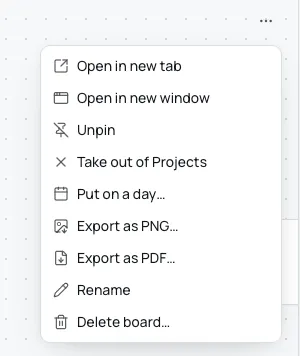
- Click Board options (⋯) at the top right.
- Choose Export as PNG or Export as PDF.
- Choose where to save it. The file is named for the board, such as “Launch.png” or “Saturday 3 October 2026.pdf”.
The toast says “Exported Launch.png.” You can also choose Export as PNG or Export as PDF in the command menu, or on a Mac choose File › Export Board as PNG.
The export shows the whole board as it looks now, in the theme showing: everything on it, its links and drawings, with a margin around them. The dot grid, the toolbars and the selection are left out.
- PNG: a picture at twice the board’s size, or smaller where a side would pass 16,384 pixels.
- PDF: one page the board’s size, holding that picture.
A board with nothing on it says “Nothing on this board yet.” instead.
One at a time
Section titled “One at a time”While an export or an import runs, Import and Export everything in Settings are dimmed, and choosing them in the command menu starts nothing.
If a folder can’t be written to, the toast says “Not exported. That folder couldn’t be written to; choose another.” Nothing half written stays in the folder. If a board can’t be drawn: “Not exported. The board couldn’t be drawn; try again.”