Tables on a board
A table is a plain grid of words on a board. Its first row is the header, in bold on a shaded ground. There are no formulas, sorting or column types: it holds words, and that is all.
Add a table
Section titled “Add a table”- Choose Add more in the toolbox.
- Choose Table, under Write.
- Click the board where the table should go.
You can also drag Table from the panel onto the board. With the keyboard, press ↵Enter on Table to put it in the middle of the view. Changed your mind before you click the board? Press EscEsc.
A new table has three columns and three rows: the header and two more. It is selected when it lands.
Type in a cell
Section titled “Type in a cell”Double-click a cell to type in it. Or select the table and press ↵Enter to type in its first cell. The cell you are typing in has a blue ring inside it.
While you type, these keys move you on:
- TabTab: the next cell. In the last cell, it adds a row and goes on into it.
- ⇧TabShift+Tab: the cell before.
- ↵Enter: the cell below. In the last row, it adds a row.
- ⇧↵Shift+Enter: a new line in the same cell.
- EscEsc: finish typing. A click anywhere else finishes too.
Words wrap inside their cell, and a row grows as tall as its tallest cell. Typing in a cell and moving on into a row that TabTab or ↵Enter added is one undo step.
Add a row or a column
Section titled “Add a row or a column”Select the table. A narrow strip with a plus shows under its last row, Add a row, and another to the right of its last column, Add a column. Click one to add an empty row at the bottom or an empty column at the right.
A new column makes the table wider by one column, so the columns you had keep their width.

Insert or delete rows and columns
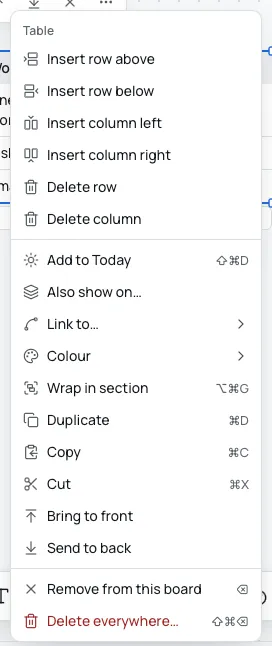
Section titled “Insert or delete rows and columns”Right-click a cell. The menu, named “Table”, starts with what you can do to that cell’s row and column:
- Insert row above
- Insert row below
- Insert column left
- Insert column right
- Delete row
- Delete column
The table’s usual options follow, as for anything on a board. Selecting and moving lists them.
Each of these is one undo step. A deleted row or column takes its words with it, and deleting a column makes the table narrower by one column.
How big a table can be
Section titled “How big a table can be”A table holds up to 20 columns and 200 rows. At either limit, the strip and the inserts for it are not offered. A table always keeps at least one row and one column, so the last one can’t be deleted.
Make a table wider or taller
Section titled “Make a table wider or taller”Drag a corner of the selected table. Its columns share the width evenly, and a table never gets narrower than its columns need. Made taller, it shares the extra height among its rows. It still grows when the words in a cell need more room.
Find, copy and delete a table
Section titled “Find, copy and delete a table”- Search finds a table by the words in its cells. See Search and commands.
- Copy (⌘CCtrl+C) puts the table’s words on the clipboard as plain text, one row to a line, to paste into another app.
- Delete a table as you delete anything on a board. A table with words in it waits in the Trash for 30 days. An empty one is deleted, and Undo brings it back while Bloomingo stays open. One thing, many places explains Remove from this board and Delete everywhere.
A screen reader reads a table as a table, with its header row as the column headings, for example “Table: 3 columns, 4 rows”.