Timers, stopwatches and Pomodoro
A clock is one card with three modes. A Timer counts down, a Stopwatch counts up, and Pomodoro runs focus rounds and offers a break after each, never forcing one. Nothing starts or stops by itself.
Add a clock
Section titled “Add a clock”- Choose Add a clock in the toolbox, then click where you want it. You can also drag it out, or press ↵Enter on it to put it in the middle of the view.
- Choose Add more in the toolbox, then Clock, under Plan.
- Choose New timer in the command menu. It names where the clock goes, such as “New timer today”.
- From a task, choose Add timer in its side panel. See Join a timer to a task.
A new clock is named “Clock” and takes the mode you chose last on this device. To give it a name, select it and click its name.
Choose a mode
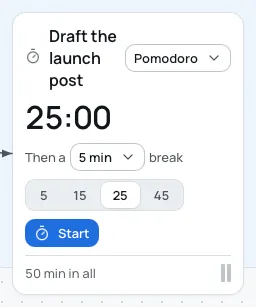
Section titled “Choose a mode”Before a clock starts, its mode is a menu at the end of its header, Mode: Timer, Stopwatch or Pomodoro. Once it runs, the mode stays until you stop it.
Use a timer
Section titled “Use a timer”- Choose a length under the digits: 5, 15, 25 or 45 minutes. For any other length, double-click the digits and type it in minutes, or in hours and minutes such as 1:30, then press ↵Enter.
- Choose Start.
- While it runs it shows the time left and a bar, with +5 min and Stop.
When time is up, the digits read “Time’s up” and the bar is full. +5 min runs five minutes more. Stop ends the run and shows the length again.
Use a stopwatch
Section titled “Use a stopwatch”Choose Start, and it counts up from 0:00. While it runs it has Pause and Stop. Paused, it has Resume and Stop. Stop ends the run and shows 0:00 again. A stopwatch has no end, so it never sends a notification.
Use Pomodoro
Section titled “Use Pomodoro”Before it starts, choose the focus length as for a timer: 25 minutes at first. Under the digits, “Then a 5 min break” sets the break: 5 min, 10 min, 15 min or 20 min. Then choose Start.
- During a focus round it reads “Focus”, with +5 min and Stop.
- At the round’s end it reads “Time for a break” and offers Take a break, Keep going, +5 min and Stop.
- Take a break counts the break down. It reads “Break”, with Back to it and Stop.
- Keep going lets the round count on from its start, as a stopwatch. It reads “Focus, kept going”, with Take a break and Stop.
- At the break’s end it reads “Break’s over” and offers Back to it, which starts a focus round, and Stop.
Every length can be changed, and there is no count of rounds.
When time is up
Section titled “When time is up”When a timer, a focus round or a break ends:
- The clock shows a ring once, and a chime plays when a Bloomingo window is in front.
- Your computer shows a notification: “Time’s up”, “Time for a break” or “Break’s over”, with the clock’s name.
- A message on the board says the same, such as “Time’s up: Pricing page.”, with +5 min. A Pomodoro clock’s message offers Take a break or Back to it instead.
Clocks keep running while the window is hidden or covered, and while the computer sleeps. An end that came during sleep chimes and shows as the computer wakes. An end that came while Bloomingo was closed shows only on the clock, quietly. If no notification appears, check that your system allows notifications from Bloomingo.
Join a timer to a task
Section titled “Join a timer to a task”A timer joined to a task says what it is for. It takes the task’s words as its name and keeps them in step.
- Right-click the task and choose Start a timer. Its side panel opens at Timers.
- Choose a length: 5, 10, 15, 25, 30 or 45 min, 1 hour or 1½ hours. It starts at 25 min.
- Choose Add timer.
- Choose Start when you are ready. The new timer waits until you do.
The timer goes beside the task’s list or task card, joined to it by a link. You can also join one yourself: draw a link from a clock to a task card, to a task in a list, or to a whole task list. See Shapes, text and links. A clock is joined to one thing at a time, so a new link replaces the old one. Removing the link unjoins it, and the clock keeps the name it last had.
When a timer joined to a task ends, its message reads “Time’s up: Call the bank.” with Mark done. That ticks the task, or today’s day of a repeating task: “Marked done.” with Undo. +5 min stays on the clock itself. A timer joined to a whole list keeps +5 min in its message.
Ticking a task pauses every running clock joined to it, keeping its time. Making the task open again starts those clocks from where they stopped. A clock you paused yourself waits for you to resume it.
A task’s timers in its side panel
Section titled “A task’s timers in its side panel”
Under Timers, each clock joined to the task shows:
- its time;
- what it is doing: “Not started”, “Running”, “Paused”, “On a break”, “Counting up” or “Time’s up”;
- its length, which you can change at any time. A running timer keeps its start and ends at its new length;
- Start, Pause or Resume, as it needs;
- Reset, once it has started, which takes it back to its length, not started;
- Show on the board, which takes you to the clock.
See a clock’s sessions
Section titled “See a clock’s sessions”Each run is kept as a session: when it started, how long it ran, its mode and the task it was joined to.
- A timer’s run, or a Pomodoro round, is kept when it ends, is stopped, is kept going or is broken off for a break.
- A stopwatch’s run is kept when it is stopped, without its pauses.
- +5 min after an end is a run of its own. A break is no session.
Once a clock has run, its card shows “3 h 40 min in all” and its last ten sessions as bars, the newest on the right.
To see them all, double-click the clock, select it and press ↵Enter, or choose Open in its menu. (A double-click on the digits of a clock that hasn’t started types its length instead.) The side panel shows its total, or “No sessions yet.”, and its sessions under Today, Yesterday or their date. Each shows its start time, its length and its mode, with Delete session, which says “Deleted.” with Undo. Deleted sessions don’t go to the Trash.
A task’s side panel ends with “Worked 2 h 15 min” over the sessions of every clock joined to it. There are no goals, scores or counts of days in a row.