The Files page
The Files page shows every picture and PDF you’ve added, on any board or in a note’s text. Each one shows whole, so you can find it by sight.
Open the Files page
Section titled “Open the Files page”Choose Files in the sidebar. You can also press ⌘KCtrl+K and choose Go to Files, or, on a Mac, choose Go › Files in the menu bar.
Under the title, a line says what the page holds: “Every picture and PDF on your boards.”

See how much space your files take
Section titled “See how much space your files take”At the top of the page, a line such as “212 MB of 1 GB used” sits over a bar that fills as you add files.
- It counts every picture and PDF Bloomingo keeps, including those waiting in Trash, until they are deleted forever.
- A picture you take out of a note’s text stops counting at once.
- Sizes are in decimal units, such as “2.4 MB” or “820 kB”.
The same line shows in Settings, under Storage and plan.
Show only pictures or only PDFs
Section titled “Show only pictures or only PDFs”The switch named “Show” chooses what the page lists:
- All shows pictures and PDFs together.
- Images shows only pictures.
- PDFs shows only PDFs.
The newest files come first. With none of a kind, the page says so, such as “No PDFs yet. PDFs you add to any board show up here.”
Read a file’s details
Section titled “Read a file’s details”Each picture shows whole, at its own shape, in columns. A PDF shows its first page. A picture that can’t be shown keeps its place with an icon.
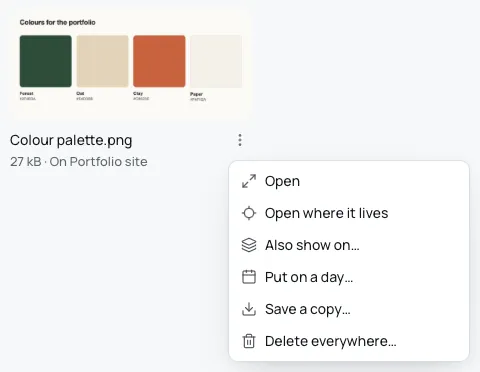
Under it are its name, a ⋮ button for its options, and a line such as “2.4 MB · On Launch”. “On Launch” is where the file lives: the board it was first put on. A file on several boards says how many instead, such as “On 3 boards”. A picture in a note’s text shows the note’s board.
Open a file
Section titled “Open a file”Click a picture or a PDF to open it in the side panel, beside the page. There you can page through a PDF and download a copy. See Pictures and PDFs.
⌘ClickCtrl+Click opens the file in a window of its own instead.
A file’s options
Section titled “A file’s options”Choose the ⋮ button beside a file’s name, or right-click the file. Its menu, “File options”, holds:
- Open opens it in the side panel.
- Open where it lives opens its board and moves to it there. For a picture in a note’s text, it moves to the note. A file on no board, such as one you imported, has no such option.
- Also show on puts the file on another board as well, with Undo. See One thing, many places.
- Put on a day opens the month. Choose a day, and the file goes on that day’s board, with Undo.
- Save a copy opens your computer’s save window, so you can keep a copy of the file anywhere you like. The file in Bloomingo stays as it is.
- Delete everywhere takes the file off every board and sends it to Trash.
A picture in a note’s text has no Also show on, Put on a day or Delete everywhere. It belongs to the note: to remove it, select it in the note and press ⌫Backspace. See Writing in a note.
Delete a file
Section titled “Delete a file”Choose Delete everywhere in the file’s options.
- A file on one board goes to Trash at once. Bloomingo says “Moved to Trash.”, with Undo.
- A file on several boards asks first: “Delete “Brief.pdf” everywhere? It is on 3 boards, and deleting removes it from all of them. You can restore it from Trash for 30 days.” Choose Delete everywhere, or Cancel to keep it.
A deleted file waits in Trash for 30 days, and still counts in your storage until then. See The Trash.
With no files at all, the page says “No files yet. Images and PDFs you add to any board show up here.”