The menu bar and right-click menus
On a Mac, the menu bar holds Bloomingo’s commands, with the same keys the app uses. On a Mac or a Windows PC, right-click a thing to see what you can do with it.
The Mac’s menu bar
Section titled “The Mac’s menu bar”Each item does what its key or the command menu does, in the Bloomingo window in front. If no Bloomingo window is in front, the first window comes forward and does it. In a note’s or a picture’s own window, Undo, Redo and Select All act on the text there, and the other items go to the first window.
A few items also work by keys the menu doesn’t show. Those keys are in brackets below.
Bloomingo
Section titled “Bloomingo”| Item | Keys | What it does |
|---|---|---|
| About Bloomingo | Shows which version you have | |
| Settings | ⌘,Ctrl+, | Opens Settings |
| Services | The Mac’s own services | |
| Hide Bloomingo, Hide Others, Show All | ⌘HCtrl+H for Hide Bloomingo | Hide and show windows, as in any Mac app |
| Quit Bloomingo | ⌘QCtrl+Q | Saves what you were typing, then quits |
| Item | Keys | What it does |
|---|---|---|
| New Tab | ⌘TCtrl+T | Opens the command menu, to choose what the new tab shows |
| New Note, New Task List, New Board | Adds one in the middle of the board showing. On a page, today opens first | |
| New Project | Makes a project and opens it, its name ready to type | |
| Export Board as PNG | Saves the board showing as a picture | |
| Export Everything | Exports your whole library to a folder | |
| Reopen Closed Tab | ⇧⌘TCtrl+Shift+T | Opens the last tab you closed again |
| Close Tab | ⌘WCtrl+W | Closes the tab in front. The last tab closes the window |
| Close Window | ⇧⌘WCtrl+Shift+W | Closes the window, with all its tabs |
| Item | Keys | What it does |
|---|---|---|
| Undo, Redo | ⌘ZCtrl+Z, ⇧⌘ZCtrl+Shift+Z | Act on the text you are typing, or else on the board |
| Cut, Copy, Paste | ⌘XCtrl+X, ⌘CCtrl+C, ⌘VCtrl+V | Act on the text you are typing, or else on the things selected on the board |
| Duplicate | ⌘DCtrl+D | Makes a copy of what is selected |
| Wrap in Section | ⌥⌘GCtrl+Alt+G | Puts what is selected in a new section |
| Select All | ⌘ACtrl+A | Selects the text you are typing, or else everything on the board |
| Search | ⌘KCtrl+K | Opens the command menu |
The Mac may add a few items of its own to this menu, such as dictation.
| Item | Keys | What it does |
|---|---|---|
| Zoom In, Zoom Out | ⌘=Ctrl+=, ⌘-Ctrl+- | Zooms the board in or out |
| Actual Size | ⌘0Ctrl+0 | Zooms the board to 100% |
| Fit to Content | (⇧1Shift+1) | Zooms to show everything on the board |
| Collapse or Expand Sidebar | ⌘\Ctrl+\ | Hides or shows the sidebar |
| Theme | A submenu: Light, Dark or System, as in Settings | |
| Enter Full Screen | The Mac’s own full screen |
| Item | Keys | What it does |
|---|---|---|
| Back, Forward | ⌘[Ctrl+[, ⌘]Ctrl+] | Go back or forward through the places this tab showed |
| Today | (G then TG then T) | Opens today |
| Braindump | (G then BG then B) | Opens the braindump |
| Previous Day, Next Day | ([[, ]]) | Opens the day before or after the one showing |
| Notes, Projects, Files | Opens that page | |
| Trash | Opens the Trash beside the sidebar |
Window and Help
Section titled “Window and Help”Window is the Mac’s own: Minimize ⌘MCtrl+M, Zoom and Bring All to Front, then your open windows.
Help has Keyboard Shortcuts (??), which opens the list of every shortcut.
On Windows
Section titled “On Windows”Windows has no menu bar. The same commands are in the command menu (⌘KCtrl+K), on the keys, and in the places below.
| On the Mac | On Windows |
|---|---|
| Settings | Settings in the sidebar, or ⌘,Ctrl+, |
| New Tab | New tab (+) after the last tab, or ⌘TCtrl+T |
| Reopen Closed Tab | ⇧⌘TCtrl+Shift+T |
| Close Tab | Close tab (×) on the tab, or ⌘WCtrl+W |
| Close Window | The window’s close button, or ⇧⌘WCtrl+Shift+W |
| Back, Forward | Back and Forward at the top left, or ⌘[Ctrl+[ and ⌘]Ctrl+] |
| Today, Braindump, Notes, Projects, Files, Trash | The sidebar |
| Keyboard Shortcuts | Help in the zoom bar, or ?? |
| Everything else | The command menu |
Right-click menus
Section titled “Right-click menus”A right-click opens Bloomingo’s own menu for the thing under the pointer. On a trackpad, click with two fingers. In a text field you get the system’s menu instead, for spelling and pasting. A right-click on an empty part of a board opens nothing.
On a board
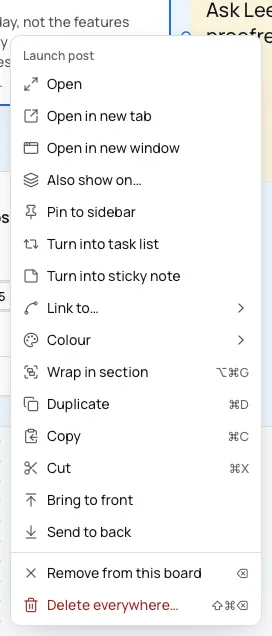
Section titled “On a board”- A thing on a board opens the node menu, “Node options”. The More button (⋯) at the end of the bar above a selected thing, and ⇧F10Shift+F10, open it too. It holds, where they apply: Open, a task’s own items, Add a caption, Open in new tab, Open in new window, Add to Today, Also show on, Pin to sidebar or Unpin, Turn into note, Turn into sticky note or Turn into task list, Link to, Colour, Wrap in section, Duplicate, Copy, Cut, Bring to front, Send to back, Remove from this board and Delete everywhere. Selecting and moving explains each one.
- A section has its own menu: Rename, Colour, Turn into a board, Select what’s in it, Bring to front, Send to back, Remove section, and Delete section and what’s in it. See Sections.
- A cell in a table adds Insert row above, Insert row below, Insert column left, Insert column right, Delete row and Delete column to the top of the node menu. See Tables.
- A task in a task list opens “Task options”: Open, Add to Today (away from today), Put on a day and Start a timer. A repeating task’s day has Open, Skip this day and Move this one to.
- A block on the timeline opens “Task options”: Open, Clear time and Delete. A repeating task’s block has Skip this day in place of Delete. Its options button opens the same menu.
The board’s options
Section titled “The board’s options”The Board options button (⋯) at the top right of a board opens its menu:
- Open in new tab, and Open in new window (never for today, or in the board’s own window);
- Pin to sidebar, or Unpin;
- on a project or another board, not a day or the braindump: Move to Projects or Take out of Projects, and Put on a day…;
- Export as PNG and Export as PDF, on every board;
- on a project or another board: Rename and Delete board.
The tabs and the sidebar
Section titled “The tabs and the sidebar”- A tab: Close tab, and Close other tabs when there are others.
- A pin under Pinned: Open in new tab, Open in new window (not for today) and Unpin.
- A place under Recent: Open in new tab and Open in new window.
On the pages
Section titled “On the pages”- A note on the Notes page: Open in new tab, Open in new window, Also show on, Put on a day, Pin to sidebar or Unpin, and Delete for a note that is on no board.
- A project on the Projects page: Open, Open in new tab, Open in new window, Pin to sidebar or Unpin, Put on a day…, Take out of Projects and Delete project. Its More button (⋮) opens the same menu.
- A file on the Files page: Open, Open where it lives (for a file on a board), Also show on, Put on a day, Save a copy… and Delete everywhere. Its More button (⋮) opens the same menu. A picture inside a note’s text has no Also show on…, Put on a day or Delete everywhere.
- A row in the Trash: Restore and Delete forever.