Find your way with the sidebar
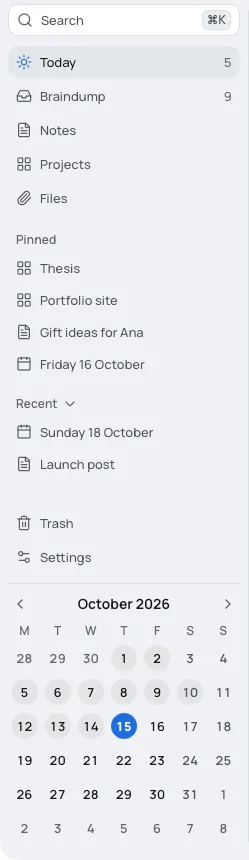
The sidebar on the left holds the places you go most: today, the braindump, your pages, the things you pinned and the things you opened lately. Click a row to go there.
What each row does
Section titled “What each row does”From the top:
- Search (⌘KCtrl+K) opens the command menu, to find anything or run an action. See search and commands.
- Today opens today’s board. When another day is open, the row shows that day’s date and opens it. Its number counts the open tasks on that day. See day boards.
- Braindump opens the board for thoughts with no day yet, and counts them. See the braindump.
- Notes, Projects and Files open their pages: Notes, Projects and Files.
- Pinned holds the things you pinned, in your order.
- Recent holds the last few things you opened.
- Trash opens the Trash beside the sidebar. See the Trash.
- Settings (⌘,Ctrl+,) opens Settings. See Settings.
- The month at the bottom opens any day. See the calendar.
The numbers are plain counts, never red. In a short window the rows from Search to Recent scroll, and Trash, Settings and the month stay at the bottom.
Pin a day, a board or a note
Section titled “Pin a day, a board or a note”A pin keeps something one click away. Pinning changes nothing on the board or note itself.
- A day, the braindump or a board: open it, then choose Board options (⋯ at its top right) > Pin to sidebar. In the command menu, Pin this day and Pin this board do the same.
- A project: on the Projects page, open the project’s options and choose Pin to sidebar.
- A board on another board: choose Pin to sidebar in its node menu.
- A note: choose Pin this note in its side panel’s header, Pin to sidebar in its node menu or on its card on the Notes page, or Pin this note in the command menu while the note is open in the side panel.
The new pin goes to the end of Pinned, and a message says “Pinned.” with Undo. Before you pin anything, the section says “Pin a day, a board or a note to keep it here.”
Open a pin
Section titled “Open a pin”- Click a pin to open it. A day or a board opens in the work area. A note opens in the side panel, over whatever shows, with Open where it lives when it lives on another board. The pin stays highlighted while its thing is open.
- Hold ⌘Ctrl and click a pin to open it in a new tab. In a window of its own, which has no tabs, it opens in a new window.
- Right-click a pin for Open in new tab, Open in new window and Unpin. Today’s pin has no Open in new window, because today always shows in the first window.
A name too long for the sidebar shows whole in a tooltip beside it.
Put your pins in order
Section titled “Put your pins in order”Drag a pin up or down within Pinned. A blue line shows where it will land.
From the keyboard, move to a pin with TabTab, then press ⌘↑Ctrl+↑ or ⌘↓Ctrl+↓ to move it up or down. The pin keeps the focus, so you can press again.
Right-click the pin and choose Unpin, or choose Unpin where you pinned it. In the command menu it is Unpin this day, Unpin this board or Unpin this note. A message says “Unpinned.” with Undo.
- A board or a note that goes to Trash takes its pin with it. If you restore it, the pin comes back. If you delete it forever, the pin goes.
- A pinned note turned into a sticky note loses its pin, and the message says “Unpinned. A sticky note has no pin.”
Recent: what you opened lately
Section titled “Recent: what you opened lately”Under Pinned, Recent shows the last five days, boards and notes you opened, the latest first, including those opened in the side panel. It leaves out today, the braindump, anything pinned and whatever is showing now.
- Click a row to open it, as a pin opens. Hold ⌘Ctrl as you click to open it in a new tab.
- Right-click a row for Open in new tab and Open in new window.
- Click the Recent label to fold the section away, and again to open it. Bloomingo remembers this on this device.
Recent is this device’s, whichever window you opened things in. With nothing to show, the section is not there.
Hide the sidebar
Section titled “Hide the sidebar”Press ⌘\Ctrl+\, or click Collapse sidebar, the panel button beside the name Bloomingo at the top of the sidebar. Do the same again, or click Expand sidebar, to bring it back. The command menu has Collapse the sidebar and Expand the sidebar, and a Mac’s View menu has Collapse or Expand Sidebar.
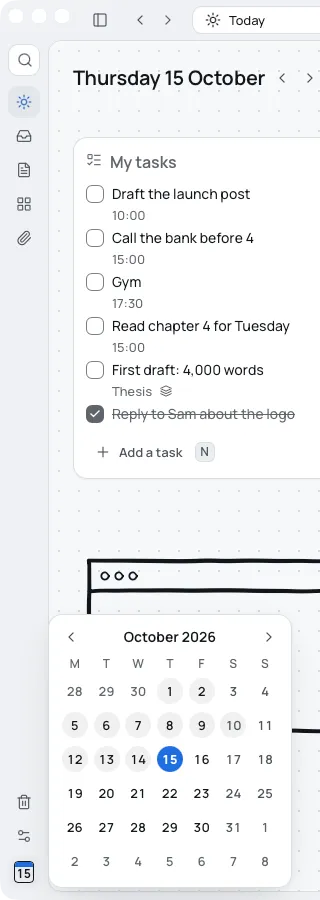
Collapsed, the sidebar is a narrow rail of icons: Search, the day, Braindump, Notes, Projects, Files, Trash and Settings, with the date tile at the bottom. Each icon names itself in a tooltip. Pinned and Recent don’t show on the rail. The date tile opens the month beside it, as the calendar explains.