Selecting and moving things
Click something on a board to select it. Its most used actions show in a bar above it, and everything else is in its menu. Each thing on a board is called a node.
Select one thing or several
Section titled “Select one thing or several”- Click a node. A blue frame shows around it, with a small square at each corner.
- Add or take one away: hold ⇧Shift as you click.
- Draw a box: with Select on, drag across an empty part of the board. Everything the box touches is selected. A section is selected only when the box holds all of it.
- Everything: press ⌘ACtrl+A.
- With the keys: the arrow keys select the nearest node in that direction. With nothing selected, they start at the top left. The view follows.
- Clear the selection: click an empty part of the board, or press EscEsc. If a menu or the side panel is open, EscEsc closes that first.
A click only selects. Click a selected node’s words to type in them, or, on a note, to open it.
Move things
Section titled “Move things”Drag a node to move it. If it is part of a selection, the whole selection moves with it. Blue guide lines show when an edge or a middle lines up with another node, and the node snaps into line.
To nudge the selection, press ⌥Arrow keysAlt+Arrow keys. It moves 4 pixels at a time, or 20 with ⇧Shift held too. Holding the key down counts as one change to undo.
Let go of a node over a section and it joins that section. A task let go on a task list joins the list (see Tasks and task lists).
Resize things
Section titled “Resize things”Drag one of the four corner squares. The opposite corner stays where it is.
- Pictures, PDFs and drawings keep their shape. Hold ⇧Shift to stretch them.
- Everything else stretches freely. Hold ⇧Shift to keep its shape.
- With the keys, press ⌥⌘Arrow keysCtrl+Alt+Arrow keys to make the selected node 20 pixels wider, narrower, taller or shorter. Add ⇧Shift for 4 pixels.
There is no largest size. The smallest is 160 by 48 pixels for a note, task list, clock or board, 120 by 40 for a task, 120 for a sticky note, and 40 for text, a shape or a picture.
Until you change its height, a node is as tall as what it holds. Once you give it a height, it keeps it. A note then shows as much text as fits, and a task list shows “Show 4 more” for the rest.
The actions bar
Section titled “The actions bar”
The bar sits above the selection, or below it when there is no room. It shows what fits what you selected, in this order:
| Action | Shows for | What it does |
|---|---|---|
| Open | One note, task, clock, board, picture, PDF or web link | Opens it. A web link opens in your browser; the rest, boards too, open in the side panel. |
| Colour | Anything | Gray, Red, Orange, Yellow, Green, Blue or Purple, or No colour. Sticky notes always keep a colour. |
| Text size | Only text | Small, Medium or Large. |
| Change shape | Only shapes | Brings up the shapes bar to swap the shape. |
| Path, Line, Arrowheads | A link | See Shapes, text and links. |
| Tidy | Two or more | Lines them up. See Zoom, pan and Tidy. |
| Wrap in section ⌥⌘GCtrl+Alt+G | Anything but a section | Puts a new section around them. |
| Turn into a board | One section | Moves what is in it onto a board of its own. |
| Remove section | Sections | Takes the section away and leaves what was in it. |
| Duplicate ⌘DCtrl+D | Anything but sections and links | Makes a copy beside it. |
| Copy ⌘CCtrl+C | Anything but sections and links | Copies it, to paste here, on another board or in another app. |
| Bring to front | Anything but sections and links | Puts it on top of what it overlaps. |
| Send to back | Anything but sections and links | Puts it under what it overlaps. |
| Remove from this board ⌫Backspace | Anything but sections and links | Takes it off this board. |
| More (⋯) ⇧F10Shift+F10 | Anything but links | Opens the node menu. |
The node menu
Section titled “The node menu”Right-click a node, press ⇧F10Shift+F10, or click More in the actions bar. The menu’s first line is the node’s name. It shows only the items that fit, in this order:
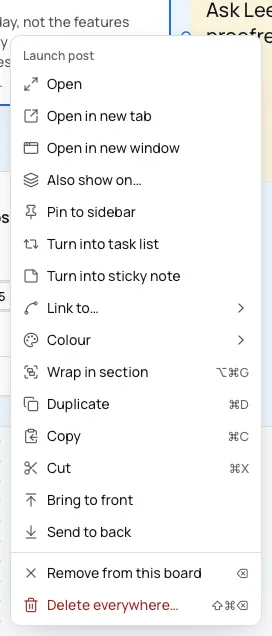
| Item | Shows for |
|---|---|
| Insert row above, Insert row below, Insert column left, Insert column right, Delete row, Delete column | A table, right-clicked on a cell |
| Open, Add to Today, Put on a day, Start a timer | A task, Add to Today only away from today’s board. See Putting a task on a day. |
| Open | A note, clock, board, picture, PDF or web link |
| Skip this day, Move this one to | A repeating task |
| Add a caption or Edit caption | A picture |
| Open in new tab, Open in new window | A note or a board. See Tabs and windows. |
| Add to Today ⇧⌘DCtrl+Shift+D | Anything else, on any board but today’s |
| Also show on | Anything. See One thing, many places. |
| Pin to sidebar or Unpin | A note or a board. See The sidebar. |
| Turn into task list, Turn into sticky note | A note |
| Turn into note | A task list or a sticky note |
| Link to | One node, not a drawing. It lists the board’s other nodes, to draw a link to one. |
| Colour | Anything: the seven colours and No colour |
| Wrap in section ⌥⌘GCtrl+Alt+G | Anything |
| Duplicate ⌘DCtrl+D, Copy ⌘CCtrl+C, Cut ⌘XCtrl+X | Anything |
| Bring to front, Send to back | Anything |
| Remove from this board ⌫Backspace | Anything |
| Delete everywhere ⇧⌘⌫Ctrl+Shift+Backspace | One node at a time |
Turn into keeps everything written. A note’s lines become tasks, and a list’s tasks become a checklist in a note. Undo turns it back.
A day’s own task lists, such as My tasks, have no Add to Today, Also show on or Turn into. A section has a menu of its own: Rename, Colour, Turn into a board, Select what’s in it, Bring to front, Send to back, Remove section, and Delete section and what’s in it. See Sections.
Open a node
Section titled “Open a node”Double-click a note, a task, a clock, a board, a picture or a PDF to open it in the side panel. Double-click text, a shape, a sticky note, a table or a list’s title to type in it.
Or select a node and press ↵Enter. This opens it, or types in it, as a double-click does, with one difference: a task starts typing instead of opening.
Duplicate, copy, cut and paste
Section titled “Duplicate, copy, cut and paste”- Duplicate ⌘DCtrl+D puts a copy 24 pixels down and to the right, selected. It copies everything inside: a list’s tasks, a note’s text, a picture’s file. A clock’s copy starts from the beginning. A board’s copy shows a copy of its board, with everything on it.
- Copy ⌘CCtrl+C copies the selection. Its words go on your computer’s clipboard too, for other apps.
- Cut ⌘XCtrl+X copies, then removes the selection as Remove from this board does. The first paste brings back the same things, wherever you paste. Later pastes are copies.
- Paste ⌘VCtrl+V places what you copied, selected, with the links between them. On the board it came from, it lands 24 pixels down and to the right while you can see the original. Anywhere else, it lands in the middle of the view.
You can paste on another board or in another window. A board can’t go on itself or on a board inside it: Bloomingo says “A board can’t go inside itself.” While you type, these keys work on the text instead.
Remove or delete
Section titled “Remove or delete”Remove from this board ⌫Backspace takes the selection off this board. Something also on another board stays there. Something on this board only goes to the Trash, or is deleted when it holds nothing.
Delete everywhere ⇧⌘⌫Ctrl+Shift+Backspace takes one node off every board, and asks first when it is on more than one. Both show a message with Undo.
Undo and redo
Section titled “Undo and redo”Press ⌘ZCtrl+Z to undo and ⇧⌘ZCtrl+Shift+Z to redo. Each board keeps its own list of the last 200 changes until you close its window.