Boards inside boards, for projects that grow
Any board can hold other boards, and a project is a board you keep in Projects. Wrap related things in a section and they move together.
Nothing to set up. Open today and start writing.
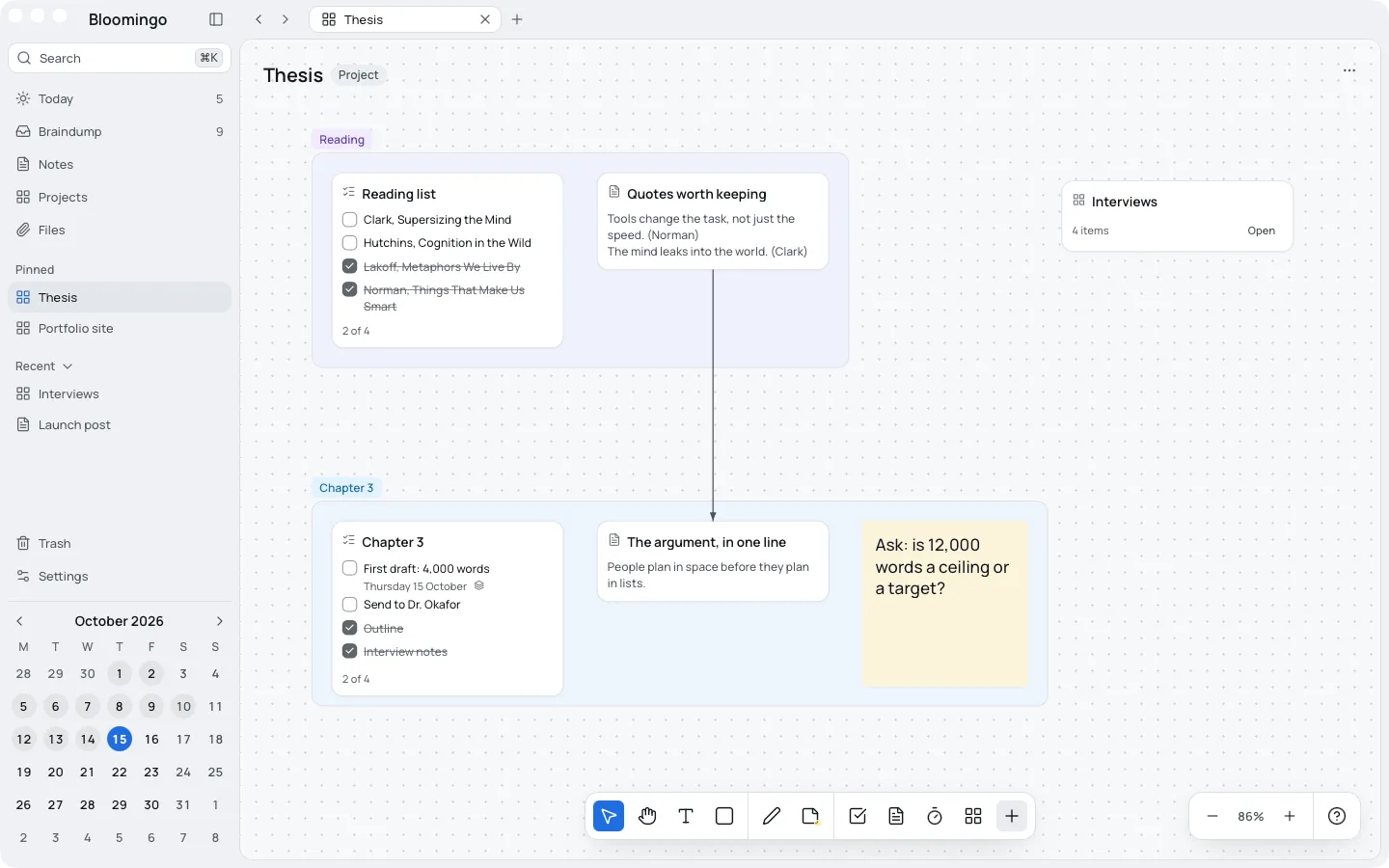
A project is a board you keep in Projects
Make one on the Projects page, or choose Move to Projects on any board. The Projects page shows each one as a small picture of its board.
When one part grows, add a board inside it. Boards go as deep as you need, and each one leads back to its parent.
No progress bars and no count of tasks done. A project is a place to work, not a score.
- Open Projects in the sidebar and choose New project.
- Type its name. Its board opens, ready to fill.
- Add tasks, notes and sticky notes from the toolbox.
- Pin it to the sidebar from its menu, so it's one click away.
Sections keep related things together
Select a few things and press ⌥⌘G to wrap them in a section, then type its name. Move the section, and everything in it moves too.
Drop something inside and it joins. Drag it out and it leaves. The section grows to fit, so it never needs arranging.
When a section grows into a project of its own, choose Turn into a board. What was in it moves to a new board, in the same place.
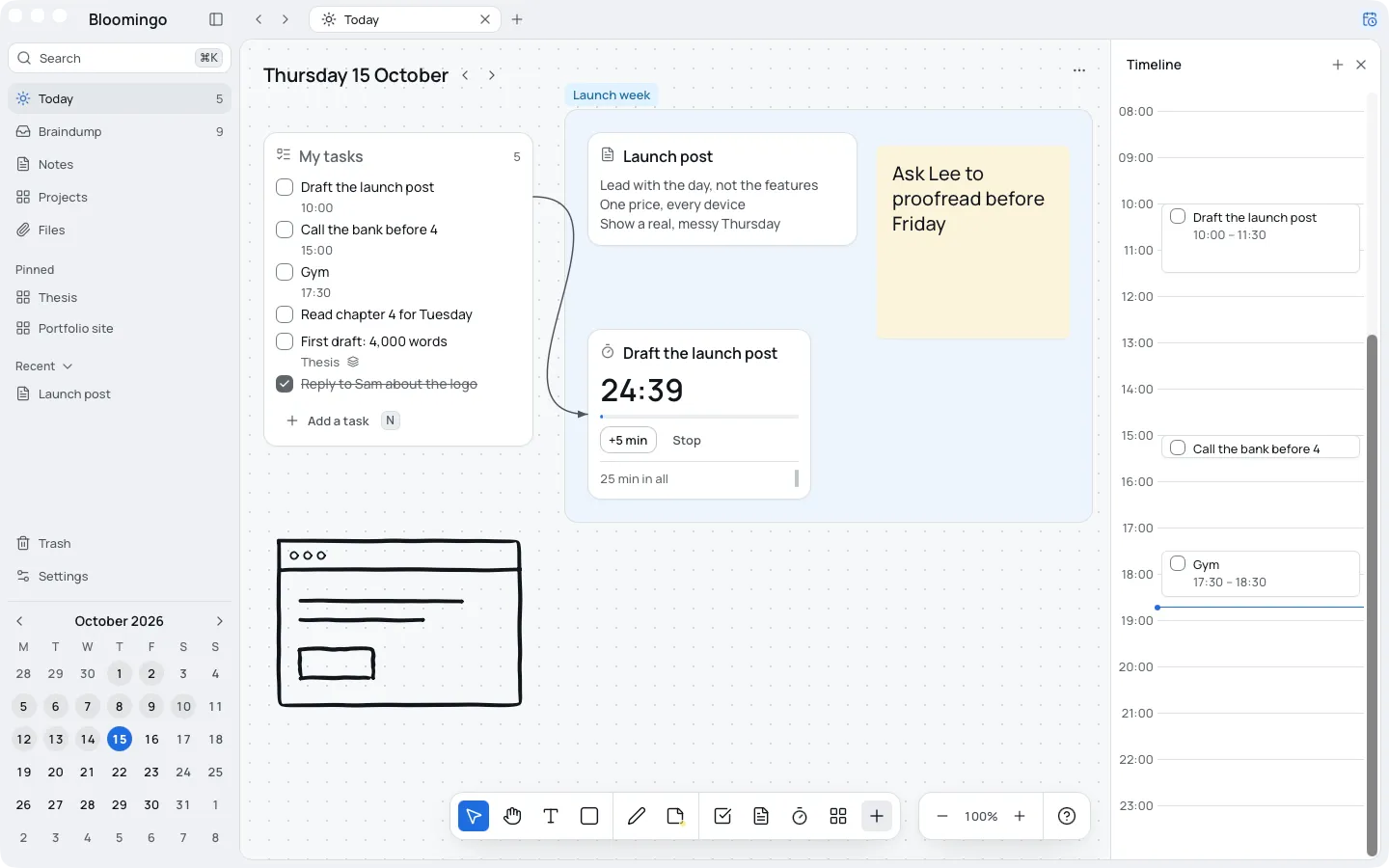
Put one task on a project and on today
Choose Also show on to put a task, a list or a note on another board too. Press ⇧⌘D to add it to today. It stays one thing, so a tick on today is a tick on the project.
Remove from this board takes it off one board only. Delete everywhere asks first, and names the boards it's on.
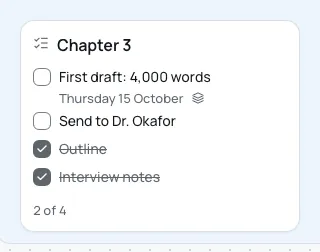
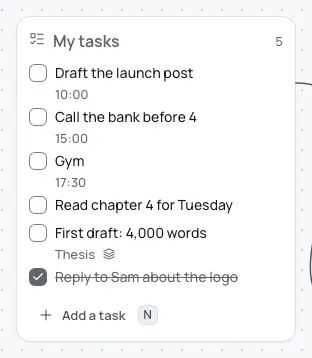
Draw a line between related things
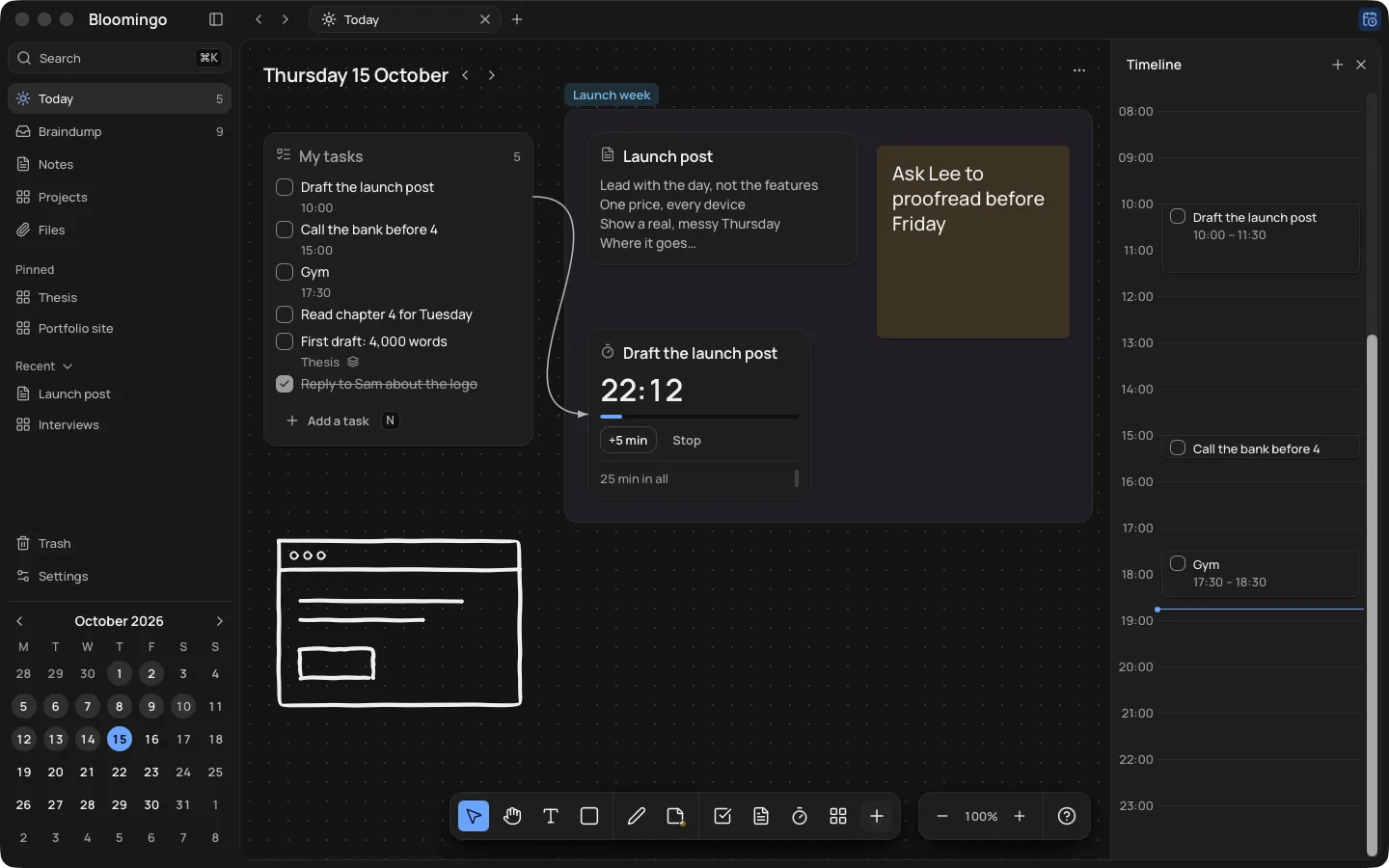
Select something and drag one of the dots on its sides to something else. The line follows both as they move.
Make it curved, straight or elbowed, solid, dashed or dotted, with an arrow or without.
A line from a clock to a task joins them, and the clock takes the task's name.
No shared boards
Bloomingo is for planning your own days and projects. Boards can't be shared, and there are no teams or assignees.
If you plan with a team, a shared tool will suit you better.
More on projects
Sections and boards, step by step
The help pages: sections, boards inside boards, and one thing in two places.
Tasks and timers
Give a project's task a time on today, and put a clock beside it while you work.
Solo builders
More projects than evenings. Each project is a board, and tonight's tasks sit on today.
Students
A board for each course, with the reading, the notes and this week's tasks together.
Give each project its own board.
Coming to Mac, Windows, iPad, iPhone and Android. Pay once. No subscription needed.