Every day is its own board
Bloomingo opens today's board. Put tasks, notes, timers and sketches anywhere on it, and go to any date from the calendar.
Nothing to set up. Open today and start writing.
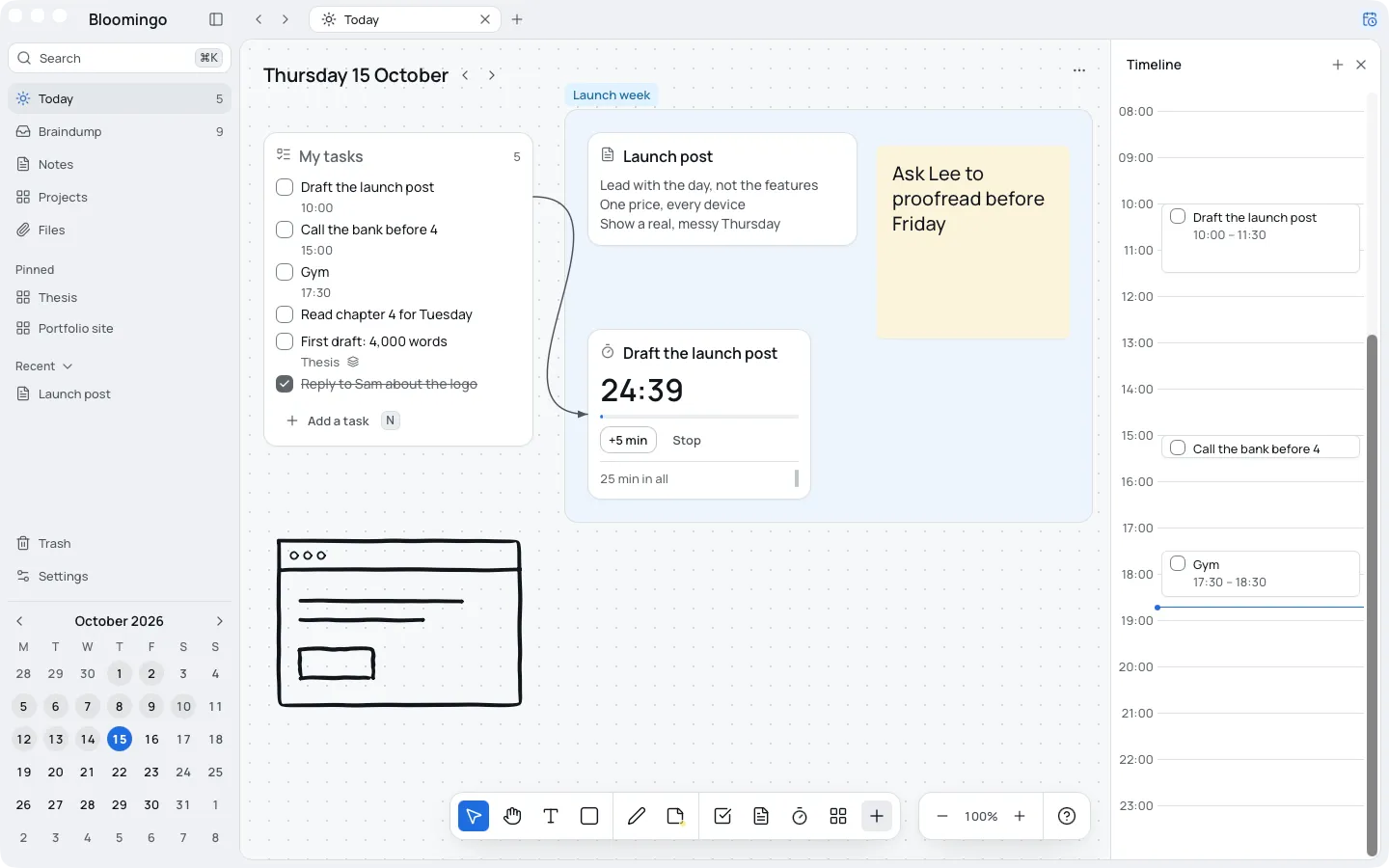
Plan today in a minute
There is no template to choose and nothing to build first. Today's board is ready when you open the app.
- Open Bloomingo. Today's board is already there.
- Type your tasks into My tasks. Press N to add the next one.
- Put notes, sticky notes and sketches anywhere around them.
- Drag a task onto the timeline to give it a time.
One ready list, and open space around it
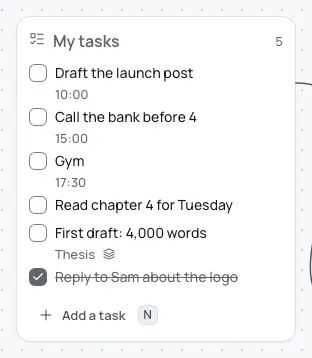
Each new day opens with one list, My tasks, and open space beside it. The list holds the tasks you put on that day, in the order you drag them.
The rest of the board is yours. Put a note beside the task it's about, a sticky note for later or a quick sketch in the corner.
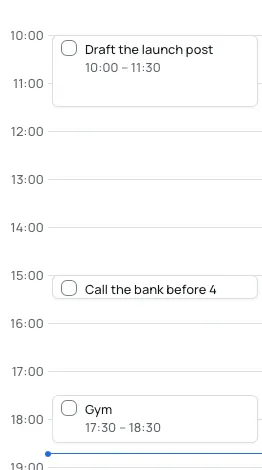
The hours sit beside the board
On a day, the timeline on the right shows each task that has a time. Drag a task onto it to give it a time, and drag the block to move it.
A task without a time stays on the board. A time gone by is never marked. Press ⌥⌘T to hide the timeline or show it again.
Your day ends when you say. Set it as late as 6 AM in Settings, and a late evening stays on the right day.
Go to any date, ahead or back
- Click a day in the month at the bottom of the sidebar.
- Use the arrows beside the date, or the [ and ] keys, to step one day.
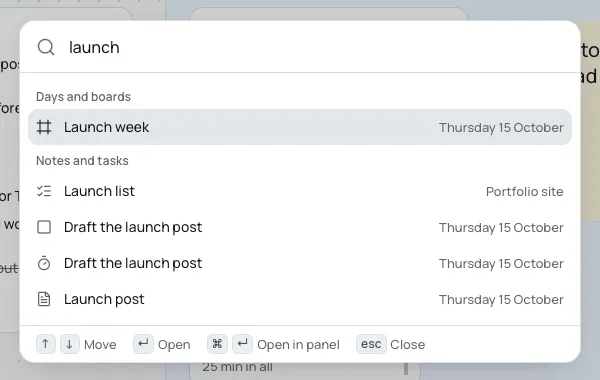
- Press ⌘K and type a date, like “fri” or “3 oct”.
- Pin a day you keep coming back to, and it waits in the sidebar.
Days gone by stay as you left them, and you can still open and change them. Nothing turns red when a day doesn't go to plan.
No list view, and no week view
Bloomingo has no list view and no week view. If you plan best in lists, a list app will suit you better.
What lists do well is on the board instead. My tasks keeps the day's tasks in order, and the timeline shows its hours.
More on planning a day
Day boards, step by step
The help page: today, any other day, and when a day ends.
Tasks and timers
Give a task a time, put a clock beside it, and decide what happens to yesterday's tasks.
The braindump
One board with no date, for everything on your mind that has no day yet.
ADHD, or just a lot on your mind
Today is always in view, and unfinished things wait where you can see them.
Plan the day you have.
Coming to Mac, Windows, iPad, iPhone and Android. Pay once. No subscription needed.