Tasks and timers, side by side on your day
Put a task on a day and give it a time, and it shows on the timeline. Put a timer beside it, join the two, and the timer takes the task's name.
Nothing to set up. Open today and start writing.
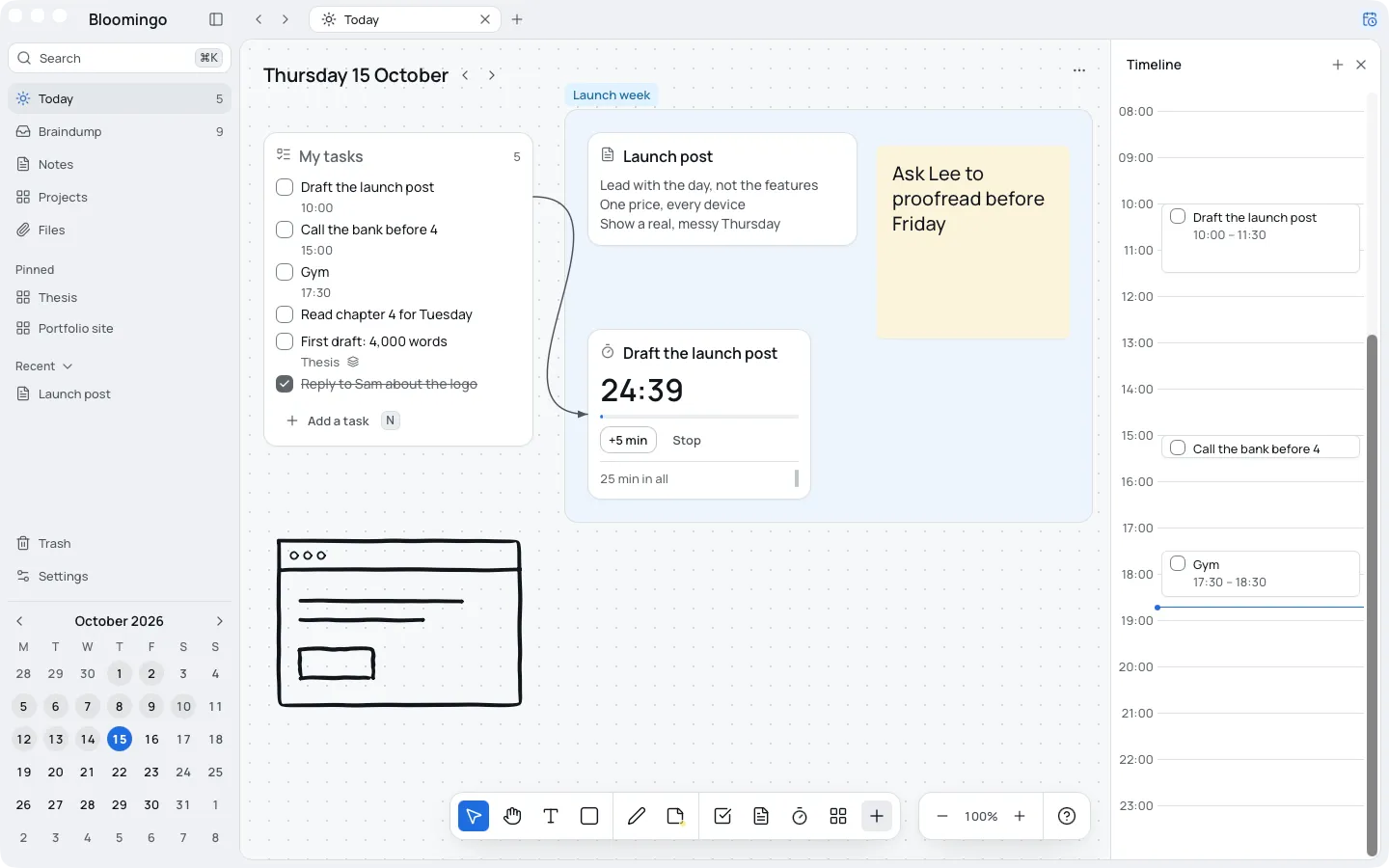
From a task to a timer in four steps
Plan the hours on the timeline, then keep a clock beside the work while you do it.
- Type a task into My tasks.
- Drag it onto the timeline to give it a time.
- Double-click it, choose Add timer, and press Start when you begin.
- Tick it when it's done. Its clock pauses with it.
A task on its own, or in a list
A task can sit on the board by itself, or in a task list with others. Drag it into a list, out of one, or onto open space.
Double-click a task to open it beside the board. There it gets a day, a time, a repeat, a deadline and notes.
A deadline that has passed says so plainly, “Was due Tuesday”, with a button to pick a new date. A repeating task is done one day at a time, and nothing piles up.
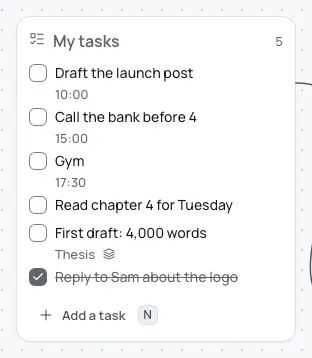
Give a task a time and a length
Drag a task onto the timeline and it gets a time, in 15-minute steps. It stays in its list on the board.
Drag the block to move it, and drag its bottom edge to change how long it takes. Drag over empty hours to add a new task there.
Want a reminder? Ask for an alert at the task's time when you open it.
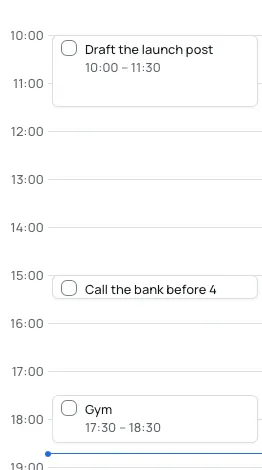
Put a task on any day
Press ⇧⌘D to add a task to today, or choose Put on a day for any other date. It lands in that day's My tasks.
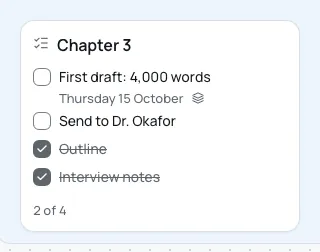
It stays one task. Tick it on Thursday and it's done on its project too, with nothing to copy.
Yesterday's unfinished tasks wait in a tray
When a new day starts, a small tray under the date holds what was left open. For each task, choose Today, Braindump, Pick a day or Let go.
Nothing moves until you choose. Let go takes a task off your days and keeps it in search.
Bloomingo never counts how many times a task was carried over. Anything still undecided when the day ends goes to the braindump, or onto the next day if you prefer.
A clock beside the work
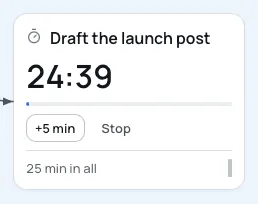
A clock counts down as a timer, counts up as a stopwatch, or runs Pomodoro rounds. Pomodoro offers breaks and never forces one.
Join a clock to a task and it takes the task's name. When a timer ends, it offers to mark the task done.
Each run is kept as a session: when it started, how long it ran and which task it was for. Double-click a clock to see its sessions, day by day. Nothing is scored, and rounds aren't counted.
No list of every task, and no time reports
Tasks live on boards. There is no page that lists every task in one place, and no reports on where your time went.
Search finds any task in a few letters, and each clock keeps its own sessions.
More on planning the hours
Tasks and timers, step by step
The help pages: every field of a task, the timeline, repeats and clocks.
Day boards
Every date opens its own board, with My tasks, open space and the timeline beside it.
The braindump
A place for tasks with no day yet, and for the ones you choose to set aside.
Students
Lecture notes, a reading list and a 25-minute timer, side by side on today's board.
Put a timer beside the task.
Coming to Mac, Windows, iPad, iPhone and Android. Pay once. No subscription needed.